Jump Cuts: What They Are and How to Make Them Look Intentional
A jump cut is a cut between two moments of the same shot. Same camera, same framing, same person — but a stretch of time removed between them, so the subject appears to jump: a head that was tilted left is suddenly upright, hands that were folded are suddenly gesturing. Every video edited from a transcript is made almost entirely of jump cuts, because deleting a sentence from a single-camera recording produces exactly one.
Whether the jump reads as a style or as a mistake depends on four things you control. This guide is about those four, with the practical version for anyone cutting a talking-head video by deleting words.
The short version
- Land the cut on a pause, never mid-word, and leave a breath on one side of it.
- Small movement across the cut is fine; large movement is the jump. Check the ones where you were gesturing.
- Cover the worst ones with B-roll — a screenshot, a slide, a photo — and the cut disappears.
- Thin them out. Ten cuts a minute is a style; forty is a stutter.
Why did jump cuts stop being a mistake?
For most of film history a jump cut was an error, because the convention was continuity: a cut should feel like a change of viewpoint, not a hole in time. Editors hid them with a second camera angle or a cutaway. Then two things happened. Jean-Luc Godard used them on purpose in Breathless in 1960, and fifty years later a generation of YouTubers with one camera and no second angle used them out of necessity, so often that viewers stopped noticing. Today a talking-head video without them looks slow.
The result is that the jump cut is now a rhythm device. A run of quick jumps reads as energy. A single jump in an otherwise smooth passage reads as an edit — the viewer registers, for a fraction of a second, that something was taken out. Neither is wrong. What is wrong is the jump the viewer notices and is bothered by, and that comes down to the four things below.
1. Where the cut lands
The audio is what gives a bad jump cut away, more than the picture. A cut that lands inside a word clips a consonant and sounds like a dropped call; a cut with no breath on either side makes two sentences collide, and speech does not do that.
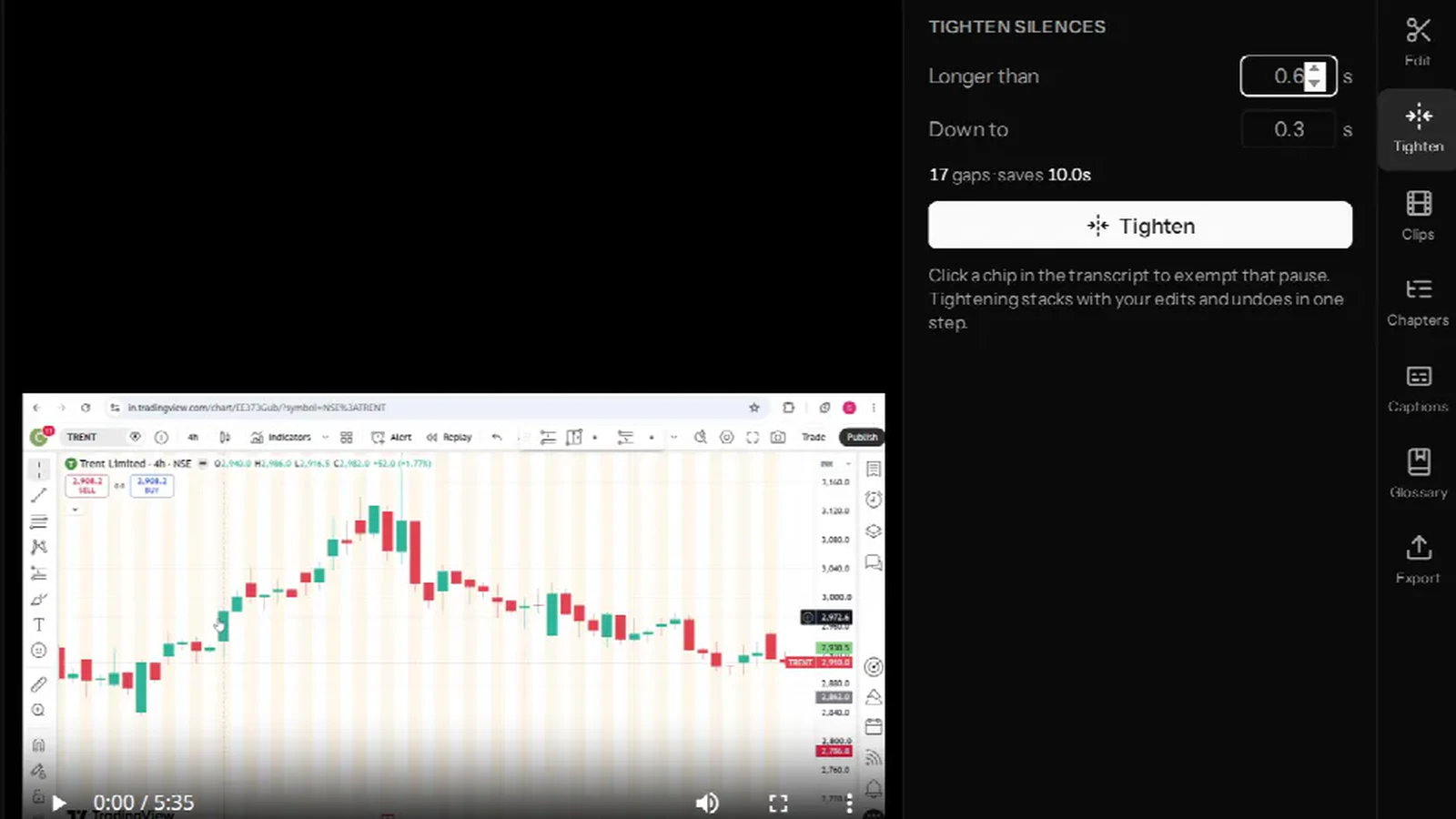
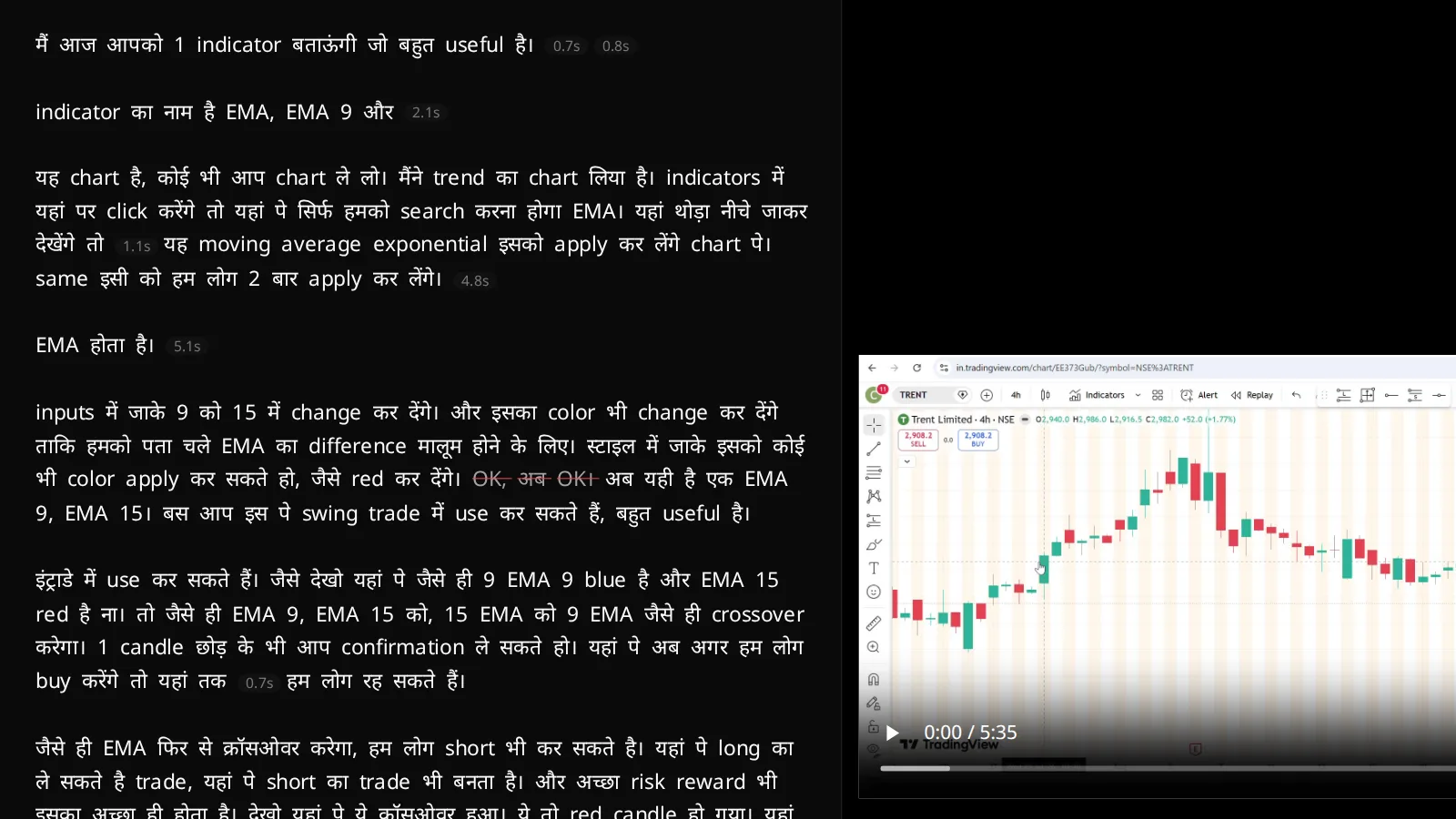
The fix is to cut on pauses. If you are editing from a transcript, this is largely done for you: a word-level editor cuts at word boundaries, with a few milliseconds of padding, and adds a tiny fade at each join so there is no click. What it cannot know is which pauses to keep. The rule: leave the breath. When you delete a sentence, delete the sentence, not the inhale that follows it — the next sentence needs somewhere to start from. In VidCarve the silence tightener shortens pauses rather than removing them, for this reason, and lets you exempt a pause by clicking its chip.
2. What moves across the cut
Look at the last frame before the cut and the first frame after. If your head, shoulders and hands are in roughly the same place, the jump is small and reads as a blink. If you were leaning in before and sitting back after, or a hand was raised and is now down, the jump is large and reads as a splice.
You cannot change where you were sitting, but you can choose the cut point. Between two candidate places to cut — the end of this sentence or the end of the next — pick the one where you moved less. Talking-head speakers tend to settle at the end of a thought, which is another reason sentence boundaries are the right place.
Two recording habits prevent most of this: stay in one posture for the duration of a take, and when you fluff a line, go back to the start of the sentence without moving. The second take will then match the first take's position and the cut between them will be nearly invisible. The retake finder in a transcript editor exists to find exactly those pairs.
3. What covers it
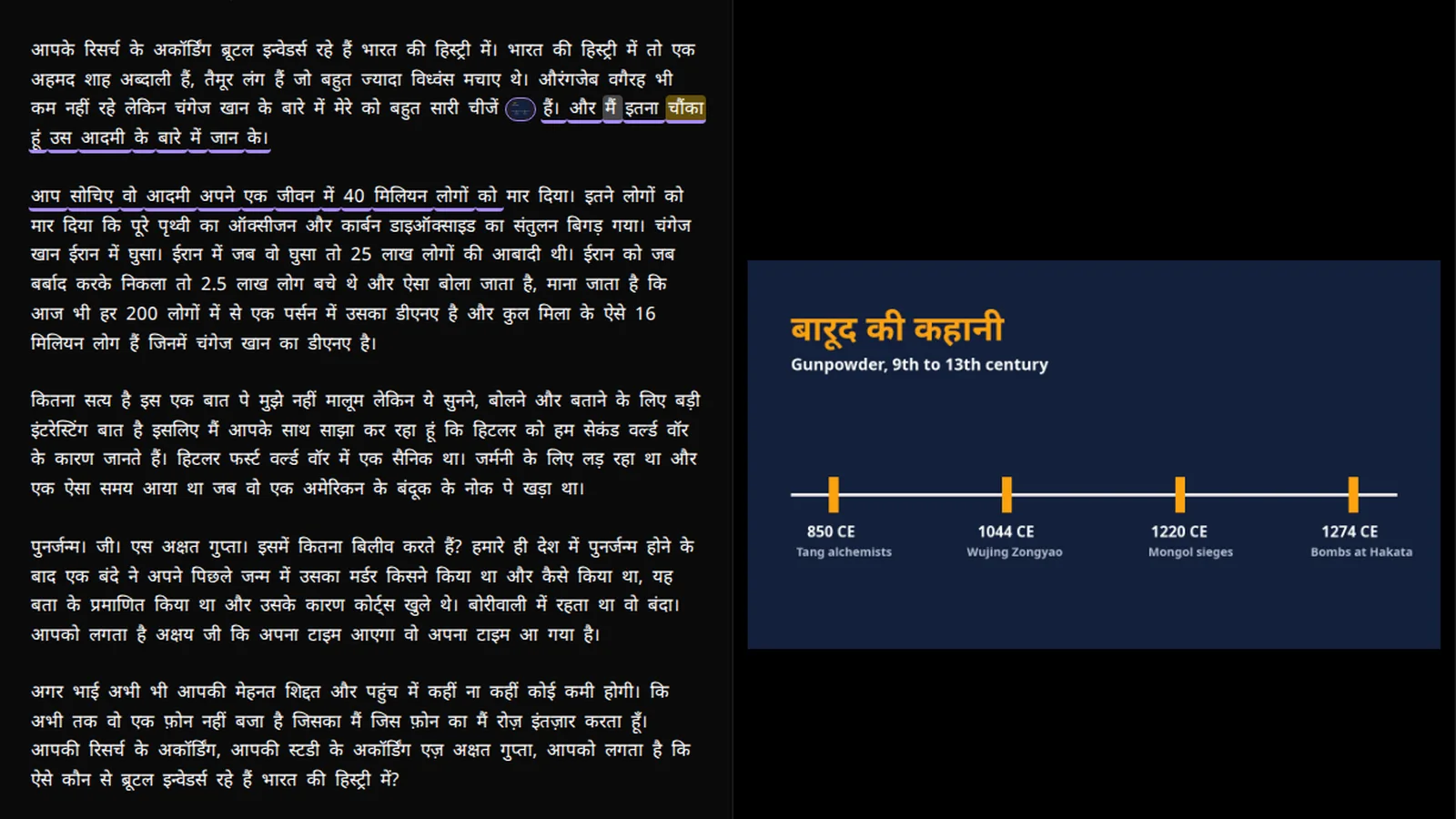
The oldest fix is still the best: cut away to something else over the join. A screenshot of the thing you are describing, a slide, a photo — anything full-frame — hides the jump completely, because there is no face on screen to jump. The viewer sees a picture, hears continuous speech, and the edit is invisible.
The craft is in placing the cutaway so it is doing something rather than only hiding a seam. A picture that appears for the two seconds either side of a cut and shows nothing relevant is itself a tell. A picture that appears because you just said "look at this chart" and happens to straddle a cut is simply good editing. So: find your worst jumps, then look at what you were saying there and whether a picture belongs. Usually one does. There is more on choosing and timing cutaways in what B-roll is and how to use it.
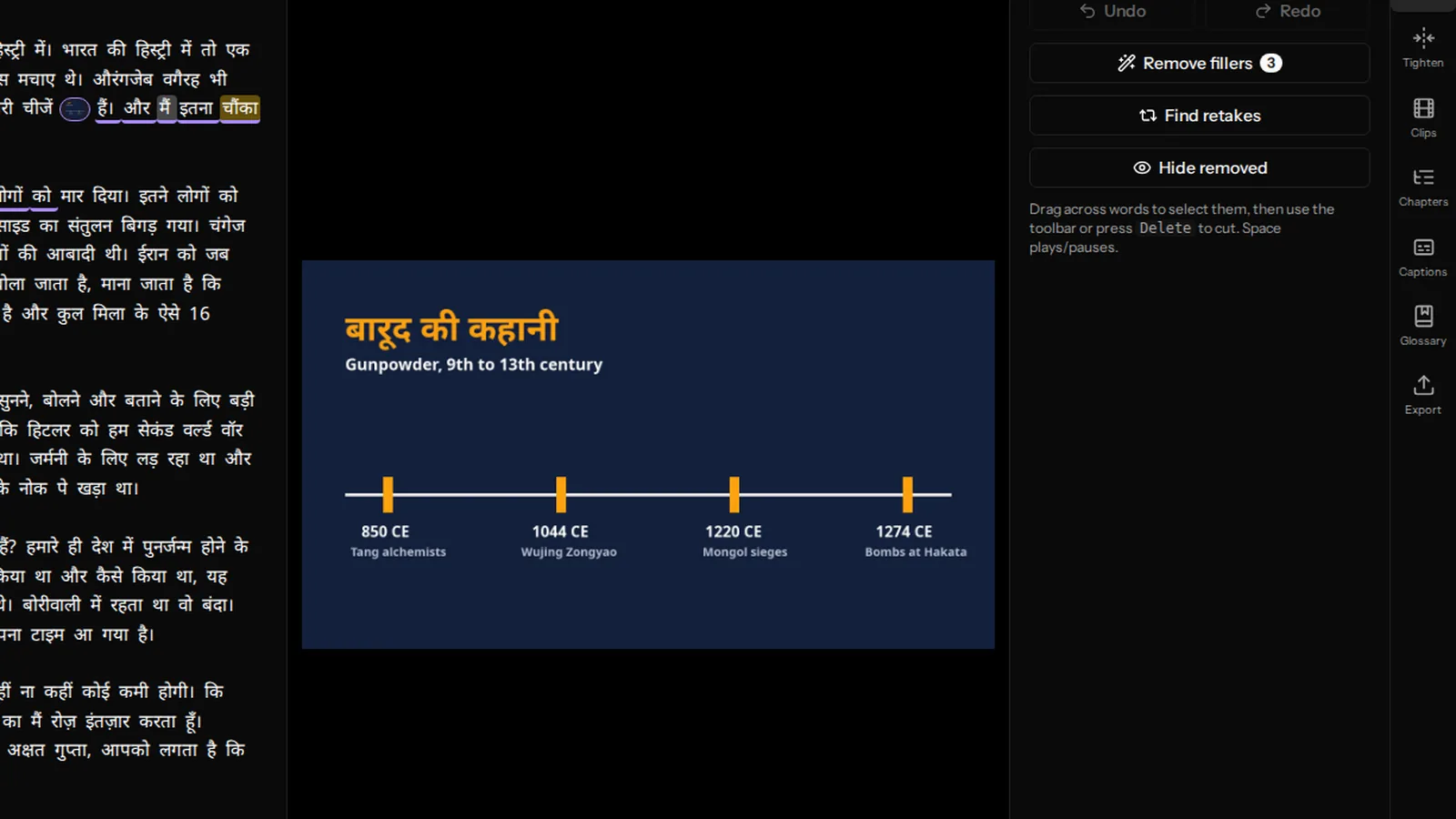
In a transcript editor the placement is a selection: pick the words that span the cut, attach the image, and it plays across the join — including if you later tighten a pause inside it. How that works in VidCarve.
4. How many there are
A video where every filler word, every pause over half a second and every restart has been cut out will have thirty or forty jumps a minute. Individually each is fine. Together they are a stutter — the viewer feels the pace as anxiety, not energy, and cannot say why.
The fix is restraint at the tool that produces them. When removing fillers, remove the ones that are dead air and keep the ones that are doing something — the "um" before a difficult admission is content. When tightening silences, raise the threshold so only the long pauses are touched, and shorten rather than remove. When cutting sentences, cut sentences, not clauses. A good rule for a monologue: if a viewer would notice fewer than one cut in ten, the density is right.
Where transcript editing helps, and where it does not
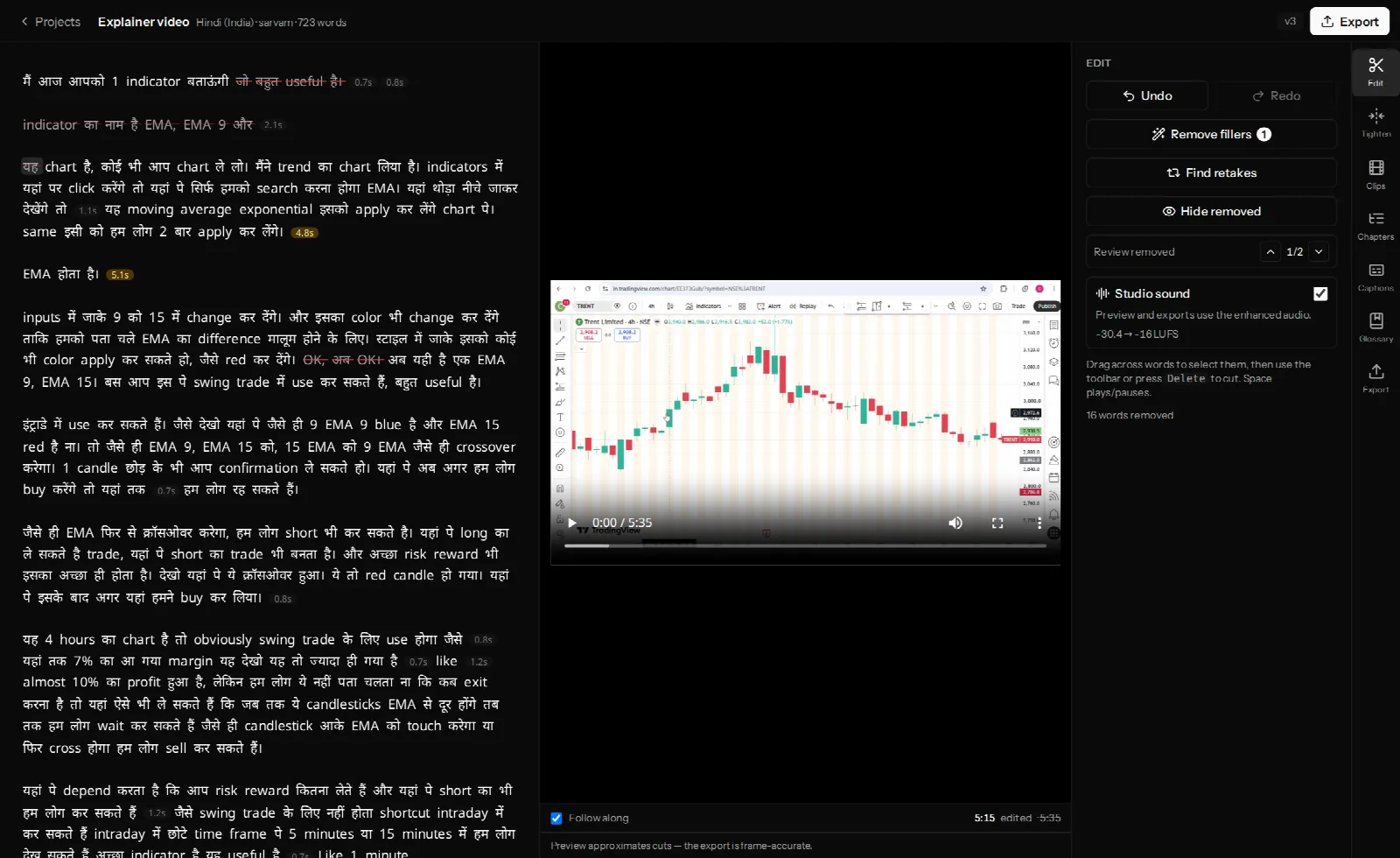
It helps with the first and fourth problems almost completely: cuts land on word boundaries with clean audio by construction, and the density is visible at a glance as strike-through text, so thinning is a matter of restoring a few runs. It helps with the third by making cutaways a selection rather than a timeline operation.
It does not help with the second, because no transcript knows where your hands were. That one is solved in the chair: record in one posture, restart sentences from the top, and review the two or three cuts per video where you know you moved. The preview plays the cuts as you make them, so those checks take seconds.
Frequently asked questions
What is the difference between a jump cut and a J-cut or L-cut?
Different things entirely. A jump cut removes time from a single shot. J- and L-cuts are about audio and video changing at different moments — the sound of the next scene starting before its picture (J), or the picture changing while the previous sound continues (L). They are continuity tools, not time-removal tools.
Can I soften a jump cut without B-roll?
A punch-in — cutting to a slightly tighter crop of the same shot on one side of the cut — is the standard trick, and it works because a change of framing reads as intentional where a change of position does not. It needs a recording with enough resolution to crop; a 4K source cropped to 1080p has plenty. Cross-dissolves, on the other hand, make jump cuts worse: a dissolve between two positions of the same face is a ghost.
Why does my jump cut have a click or pop?
The audio was cut mid-waveform with no fade. A few milliseconds of fade at each edge removes it; any transcript editor worth using does this automatically.
Are jump cuts bad for retention?
Too few are. A talking-head video with no cuts is slower than viewers now expect. Too many are also bad, in the way described above. The evidence from the channels that do this well suggests something like eight to fifteen cuts a minute for an energetic explainer and half that for a considered one.
Do jump cuts work with burned-in captions?
Well, because the captions carry across the cut and give the eye continuity the picture lacks. It is one of the reasons captioned talking-head video tolerates a high cut density.
Next steps
- Remove filler words, silences and retakes — the three tools that produce most jump cuts, and how to use them with restraint.
- What B-roll is and how to use it — the cover.
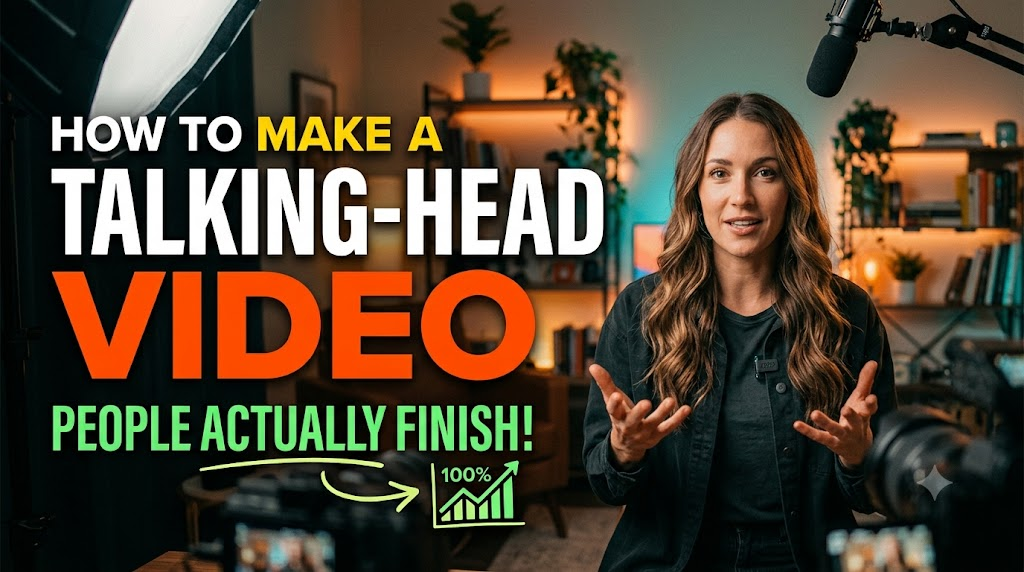
- How to make a talking-head video people finish — recording so the cuts are easy.