How to Remove Filler Words, Silences and Retakes in VidCarve
The fastest way to tighten a talking-head video is to stop looking at the waveform. In VidCarve you cut by deleting text, and three tools do most of the tedious work for you: a filler-word pass, a silence tightener, and a retake finder that spots the sentences you started over.
This guide covers all three, plus the manual gesture underneath them. It assumes you already have a transcript — if not, start with editing a video in VidCarve from upload to export.
The short version
- Cut by hand: drag across words, press
Delete. - Remove fillers: Edit tab → Remove fillers → review the list → apply.
- Tighten silences: Tighten tab → set a threshold → check the savings → Tighten.
- Remove retakes: Edit tab → Find retakes → wait a few minutes → check the real ones → apply.
- Undo anything with
Cmd/Ctrl-Z. Every step is its own version.
How do you cut words out of a video?
Drag across the words you want gone. A toolbar appears above the selection telling you how many words it covers, and Delete does the same job from the keyboard.
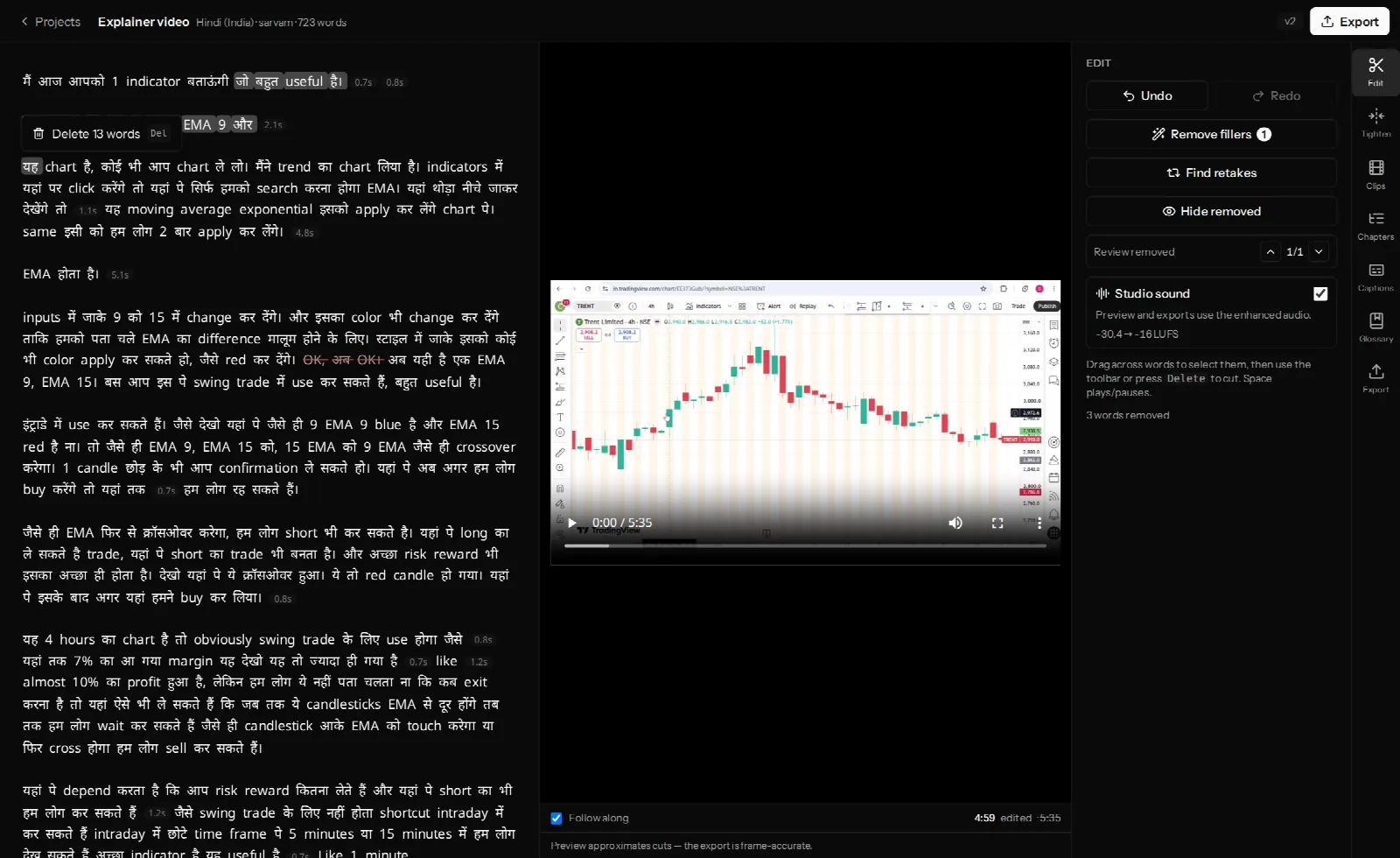
Deleted words stay on screen with a line through them. That is deliberate: a cut you cannot see is a cut you cannot check. The Edit tab keeps a running count of removed words and gives you a Review removed stepper to jump between each removed span in order.
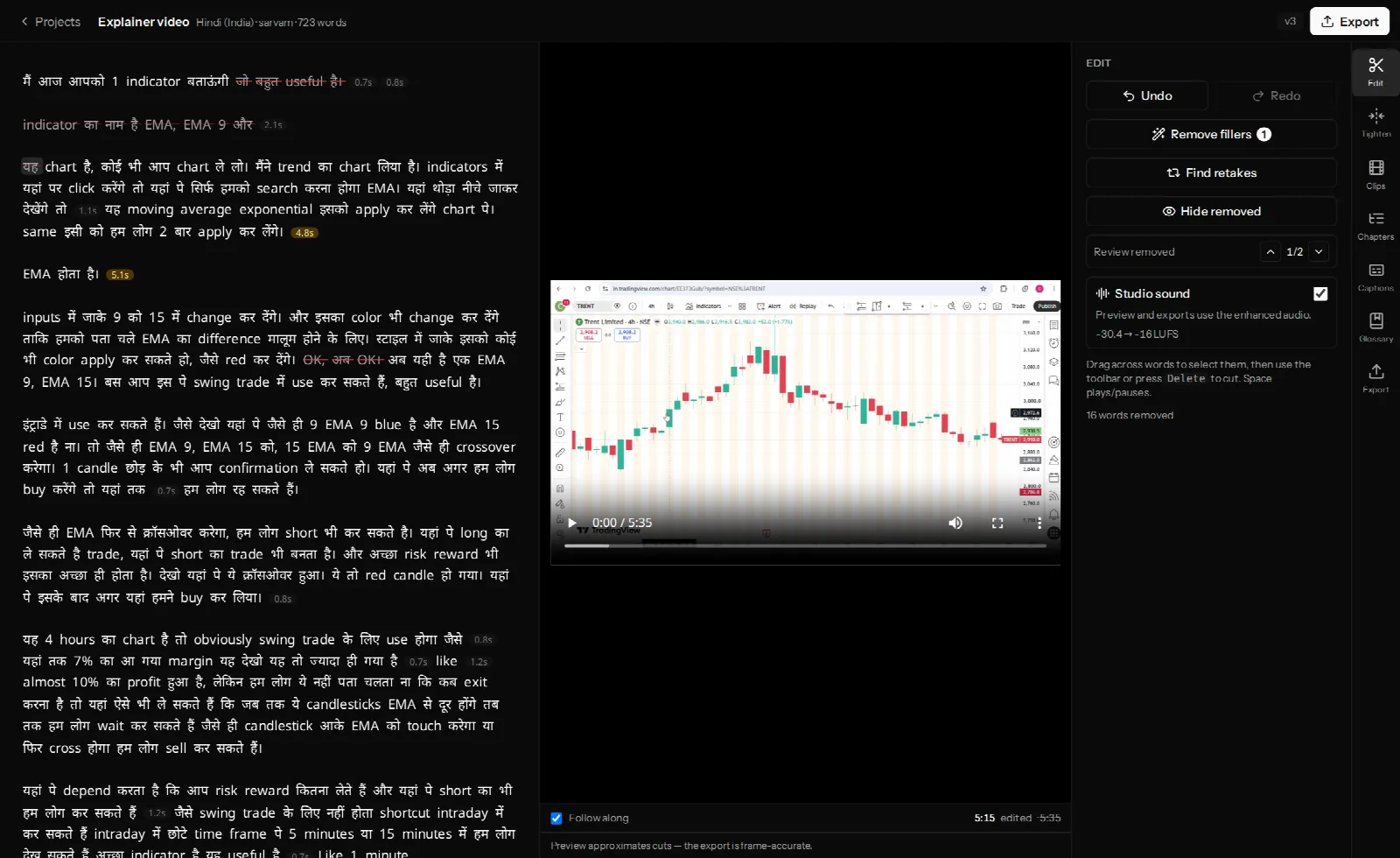
Nothing is destroyed. Each edit creates a new version — the badge in the header ticks up — and undo walks back through them.
How do you remove filler words automatically?
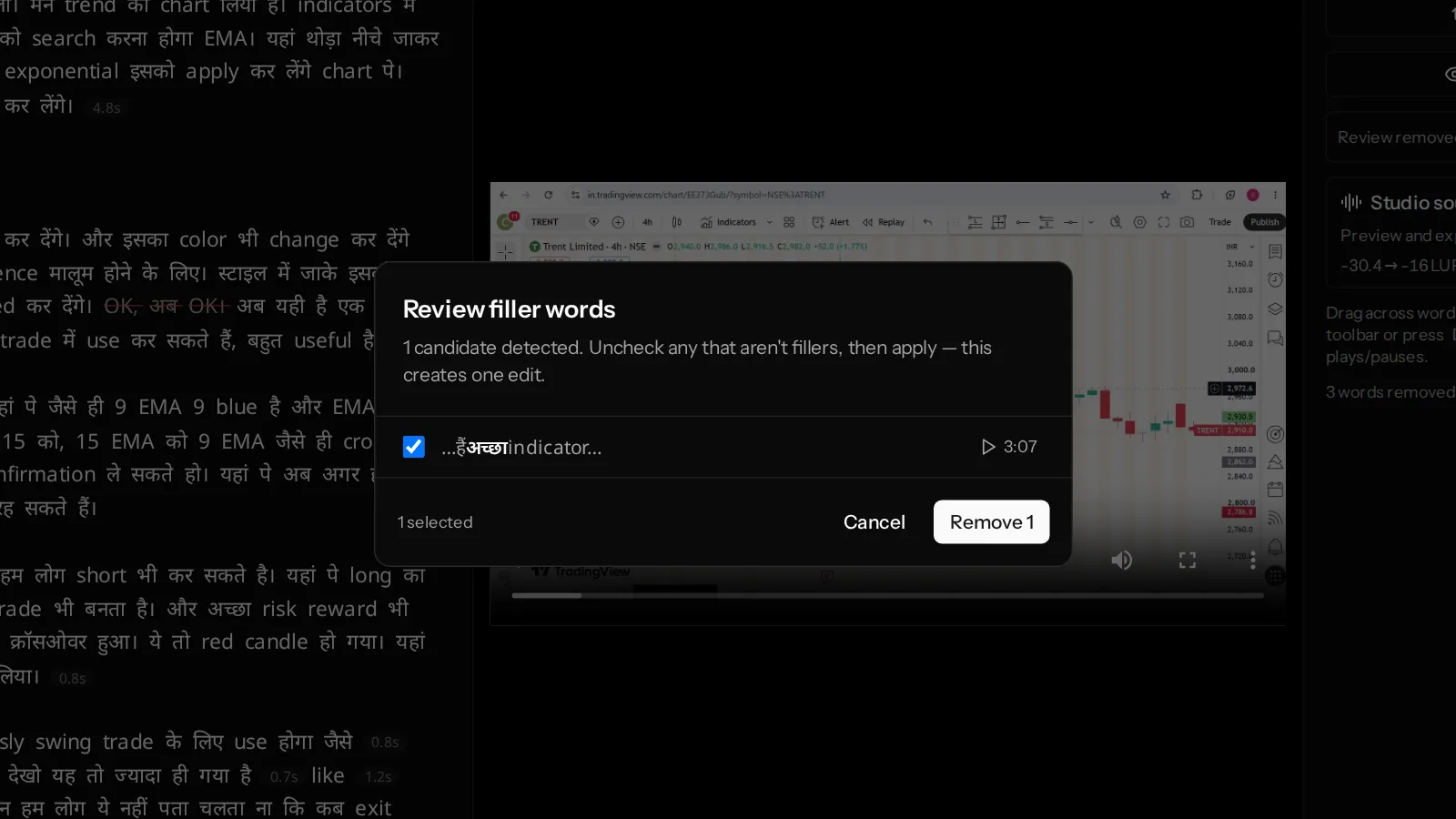
Open the Edit tab and look at Remove fillers. The badge on the button is how many candidates VidCarve found. Click it and you get a review list rather than an immediate cut.
Each row shows the word in its surrounding text so you can judge it, and a play button so you can hear it. Uncheck the ones that are doing real work, then apply — the whole pass lands as a single version, so one undo reverses all of it.
Why some filler words need a duration, not just a match
Pure hesitations — hmm, umm, Telugu ఉమ్ — mean nothing else, so VidCarve strikes them wherever they appear.
Other words are only fillers sometimes. Hindi वो is usually the pronoun "that"; Telugu ఆ is usually the demonstrative. Cutting every one of them would shred the sentence. So for these, VidCarve measures how long the word was actually spoken and only treats it as a hesitation when it was drawn out. In measured transcripts the two uses separate cleanly: the pronoun वो lands in the 0.04–0.22 second range, while the hesitation runs closer to a second.
This is also why the filler pass is per-language, and why a language with no filler list yet simply leaves the button empty rather than guessing.
How do you shorten long pauses?
Dead air is usually a bigger drag on a video's pace than filler words are. The Tighten tab handles it as a bulk operation.
Look at the transcript first: the small pill-shaped chips between words are measured silences, labelled with their length. They are the raw material the tightener works on.
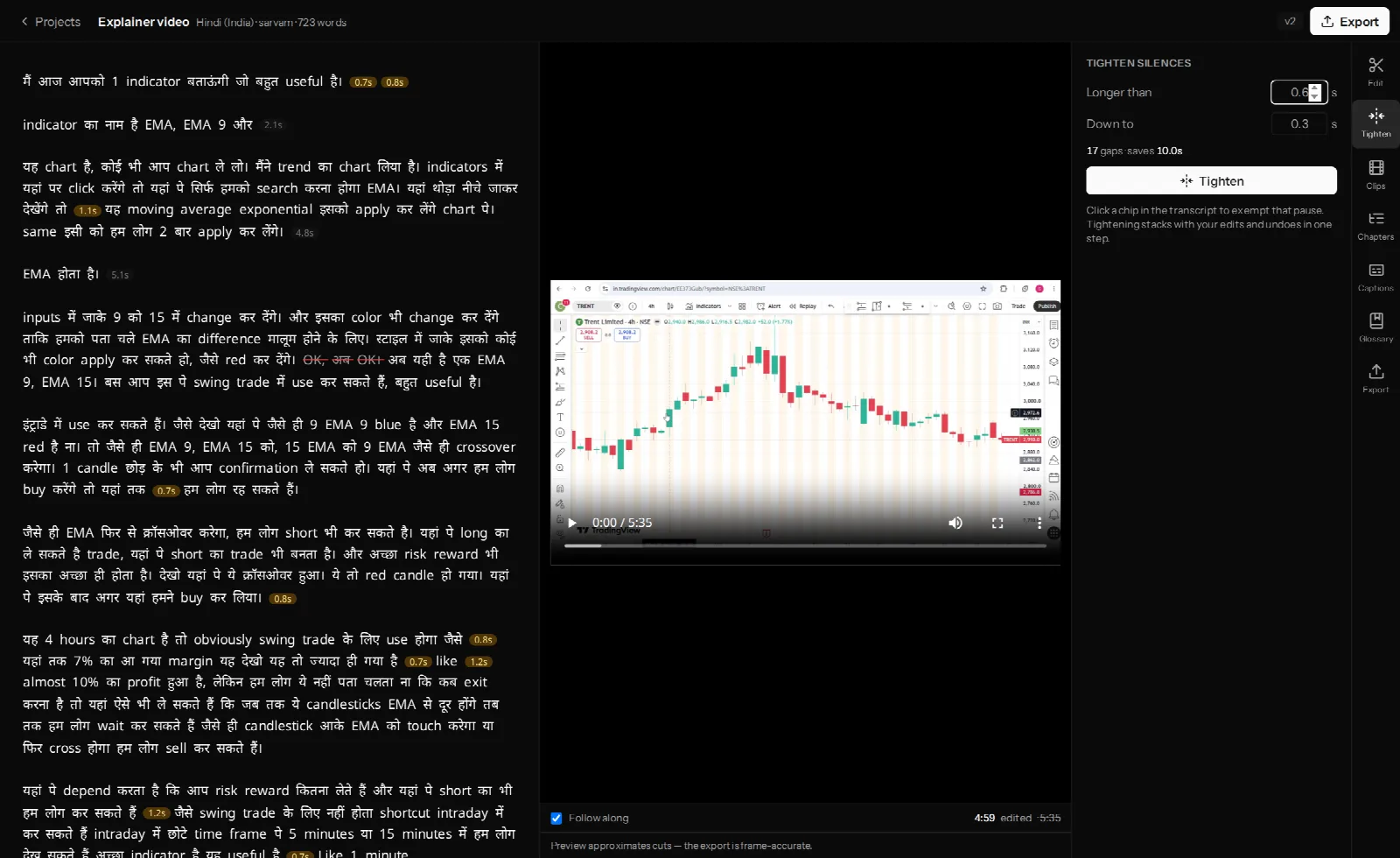
Two numbers control it:
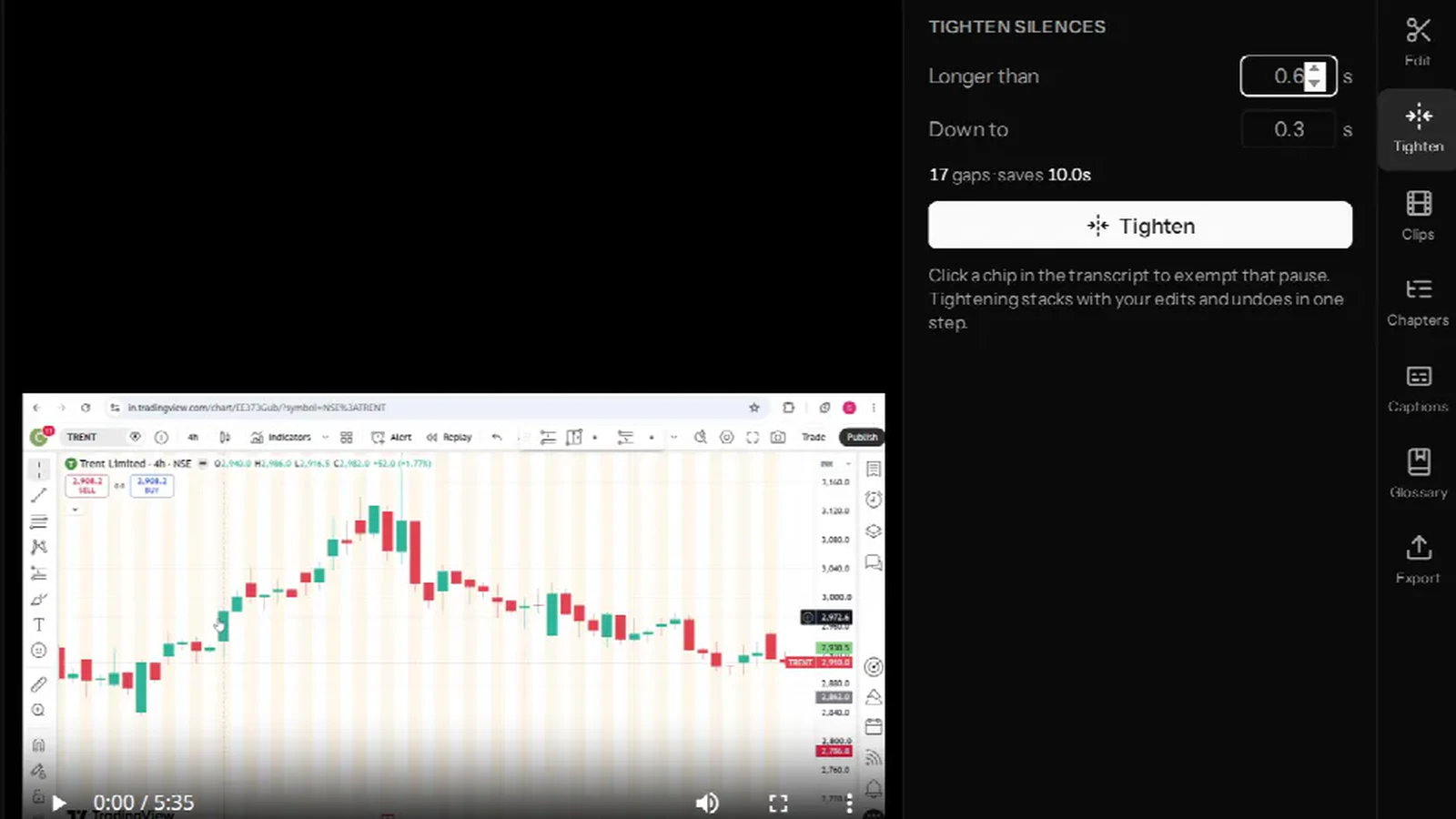
- Longer than — the length a silence has to reach before it is touched at all.
- Down to — what those silences become. Not zero: a pause trimmed to nothing sounds clipped and unnatural.
As you change them, the readout under the fields updates with how many gaps are affected and how much time you will save. Nothing happens until you press Tighten.
Protect a pause you meant to leave. Click its chip in the transcript and that gap is exempted — it stays struck through in the chip row and the tightener skips it. Useful for a beat before a punchline, or the silence you left for a graphic.
Tightening stacks on top of the cuts you have already made, and it undoes in one step like any other edit.
How do you find retakes and abandoned sentences?
The hardest cuts to find by hand are the ones where you fumbled a line, stopped, and said it again properly. They are invisible in a waveform and easy to skim past in a transcript, because both versions read as sensible sentences.
In the Edit tab, Find retakes reads the whole transcript looking for exactly that pattern. It takes four to six minutes, because the model works through the entire document before it answers. You can keep editing while it runs; the proposals appear when they are ready.
What comes back is a review list, and every row shows two things: the take it proposes to cut, and the take that replaces it. That pairing is the whole judgement — a repeated line on its own could be a fumble, or it could be emphasis. Nothing is pre-checked, and applying your selection commits one version.
Repetition for emphasis and list patterns ("first… first… first…") are not retakes, and are the two things worth looking for before you accept a proposal.
What order should you do these in?
They compose, so strictly speaking any order works. In practice this one wastes the least effort:
- Find retakes first, while it runs in the background and you do something else. It makes the largest structural cuts.
- Remove fillers next. Quick, and it thins out the text before you read it closely.
- Cut by hand — the tangents, the repeated explanation, the bit that did not land.
- Tighten silences last. Do it after the structural cuts, so you are only tightening pauses that survived.
What about noisy or uneven audio?
Cutting fixes pace, not sound. If the recording itself is rough, the Studio sound control in the Edit tab (available on paid plans) cleans up background noise and levels the loudness across the whole video, and reports the change it made in LUFS. It runs on the full timeline before your cuts are applied, so the result stays consistent across every join.
Frequently asked questions
Can I undo a filler pass after applying it?
Yes. The whole pass is one version, so a single Cmd/Ctrl-Z restores every word it removed.
Will removing filler words make the audio sound choppy?
Cuts are made at word boundaries with a small pad, and joins get a brief fade, so short removals are generally inaudible. Reviewing the preview before exporting is still worth the minute it takes.
Why does the retake finder take several minutes?
It reasons over the entire transcript rather than scanning for repeated strings, which is what lets it tell a genuine restart apart from deliberate repetition. Only that one button is disabled while it runs — you can keep cutting meanwhile.
Do these tools work on Hindi and other Indian languages?
Yes. Filler lists are maintained per language, silence detection is language-independent, and retake finding works from the transcript in whatever language and script it was written. See getting accurate Hindi, Hinglish and regional-language transcripts.
Does my exported video keep the pauses I exempted?
Yes. An exempted gap is excluded from the tighten pass entirely, so it survives at its original length.
Next steps
- Add burned-in captions in Hindi and other Indian languages — captions are timed from the edited transcript, so they follow these cuts.
- Turn a long video into vertical clips for Reels and Shorts
- The complete beginner's guide to editing in VidCarve