How to Edit a Video Podcast: One Episode, Start to Finish
A video podcast is the one format where transcript editing pays for itself on the first episode. Ninety minutes of two people talking is ninety minutes of scrubbing in a timeline editor — and about forty minutes of reading in a transcript one.
This is the whole workflow for one episode, in the order that wastes the least effort: what to decide before you upload, what to fix in which pass, and what to publish besides the episode itself.
The short version
- Before uploading: turn on Multiple speakers and add guest names to the glossary.
- Fix the sound first with Studio sound, before you judge any of the content.
- Start the retake finder and let it run while you do something else.
- Cut by reading — remove tangents, then fillers, then tighten silences.
- Publish more than the episode: chapters for the description, clips for the feeds, captions for the mute scroll.
What to decide before the file goes up
Two of these cannot be changed afterwards, so they are worth thirty seconds of attention.
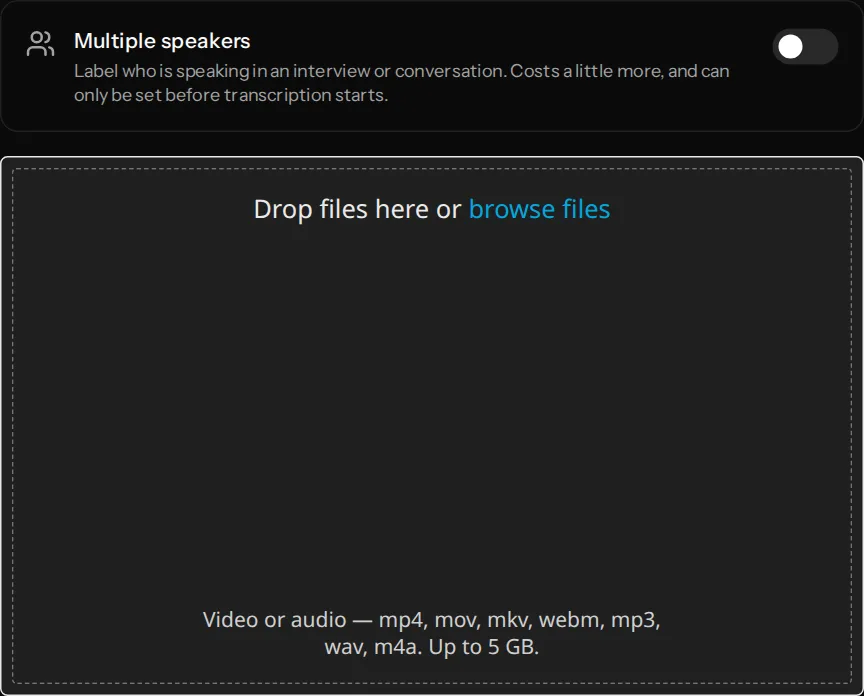
Multiple speakers. Switch it on before uploading. Speaker separation happens during transcription, so turning it on later means transcribing the whole episode again. For any interview or two-hander this is non-negotiable — without it you get one wall of text and no idea who said what.
Glossary terms. Your guest's name, their company, the two pieces of jargon your show is about. Terms are read when transcription starts, so adding them afterwards needs a re-transcribe. Account-level terms — your show name, your recurring segments — are worth adding once and forgetting.
Language can be left blank. VidCarve samples the opening minute and routes the episode itself, including Hinglish, which a naive detector would send to an English model and get back as a fluent English translation rather than a transcript.
Pass one: fix the sound before you judge the content
Do this first, and not because of the audio. Do it because bad sound makes you misjudge content — a section recorded quietly reads as low-energy and gets cut when the problem was the gain.
Tick Studio sound in the Edit tab and let it run over the whole recording while you start reading. It denoises and then levels the episode to broadcast loudness, and reports the before-and-after in LUFS so you can see how far off the recording was. Full detail in removing background noise from a video.
Pass two: start the slow job, then read
In the Edit tab, press Find retakes and leave it. It takes four to six minutes because it reads the whole transcript before answering — which is exactly why it can spot the sentence your guest started, abandoned and said again properly, three sentences later.
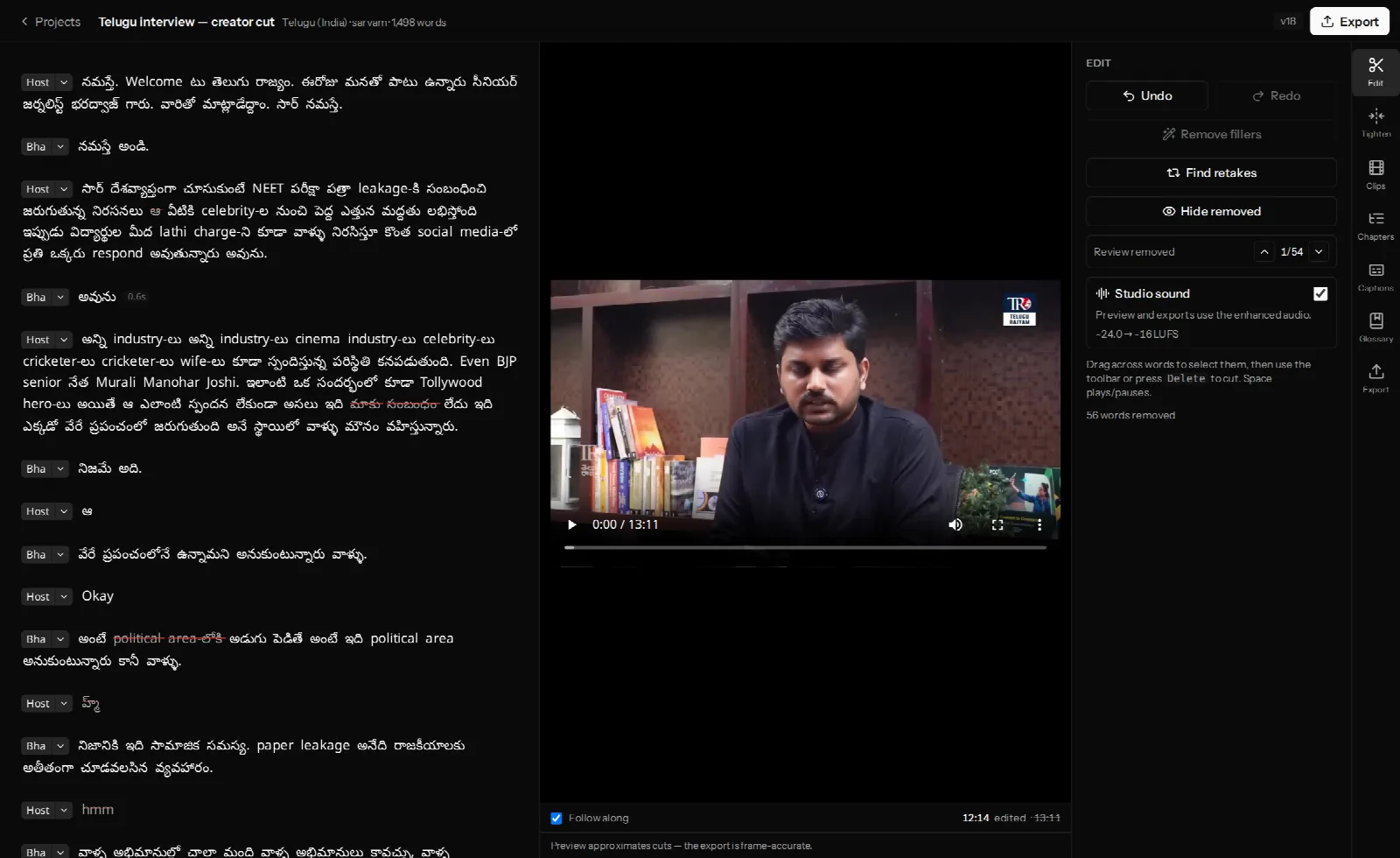
While it runs, do the pass that actually shapes the episode: read it and delete the boring parts. Drag across words, press Delete. This is where a 90-minute conversation becomes a 55-minute episode, and no automatic tool does it for you — the tangent that has to go is not detectable from the audio, only from what it is about.
Rename speakers as you read. VidCarve makes a first attempt from the conversation itself, since people introduce each other in the first minute, but a real name in the badge makes the rest of the read much faster.
Pass three: the tidy-up, in this order
- Accept the retakes you agree with when the proposals land. Each row shows the take being cut and the take replacing it — check that pairing rather than the line alone, because repetition for emphasis is not a retake.
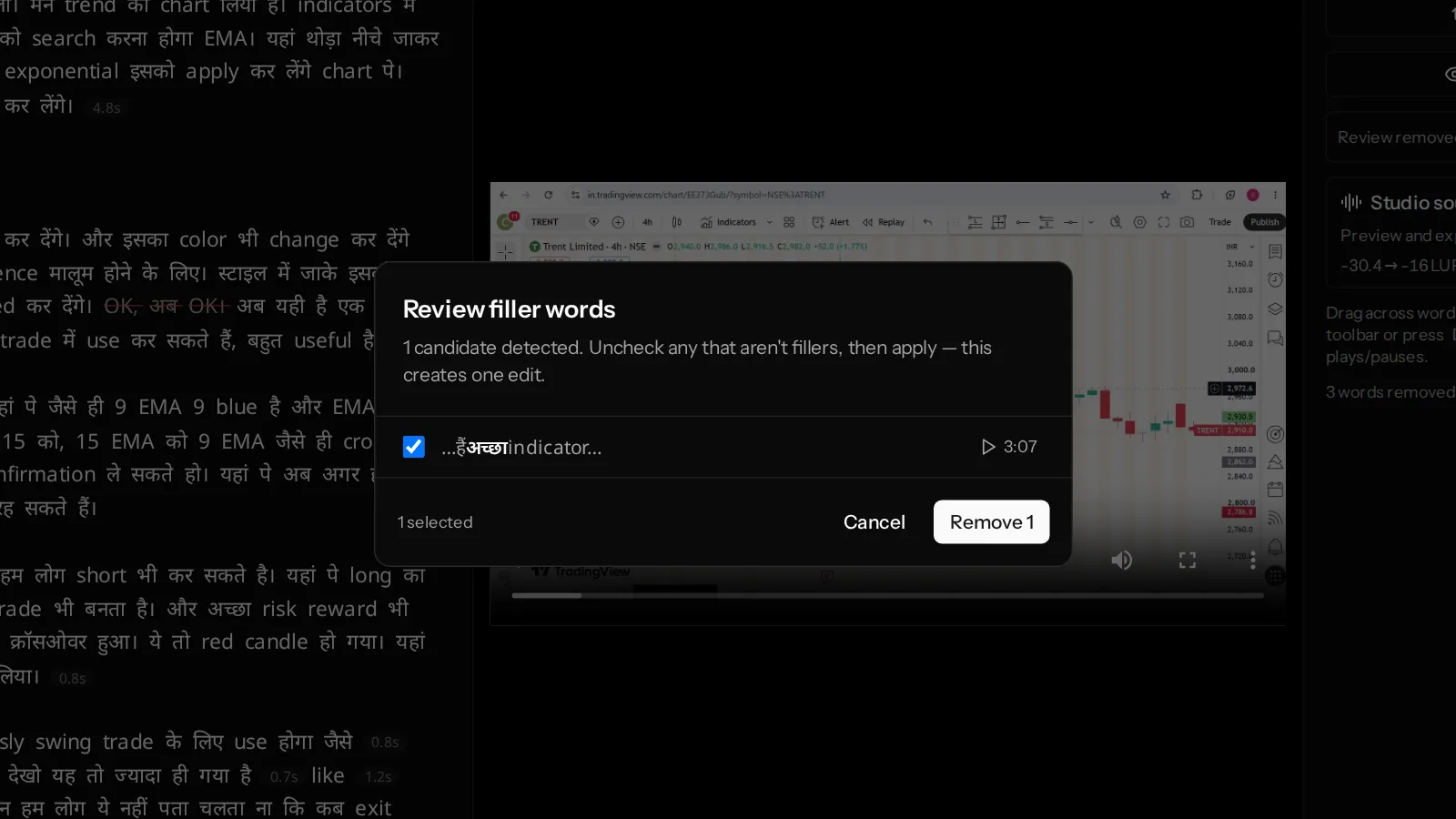
- Remove fillers. Quick, reviewable, and it thins the text before your final read.
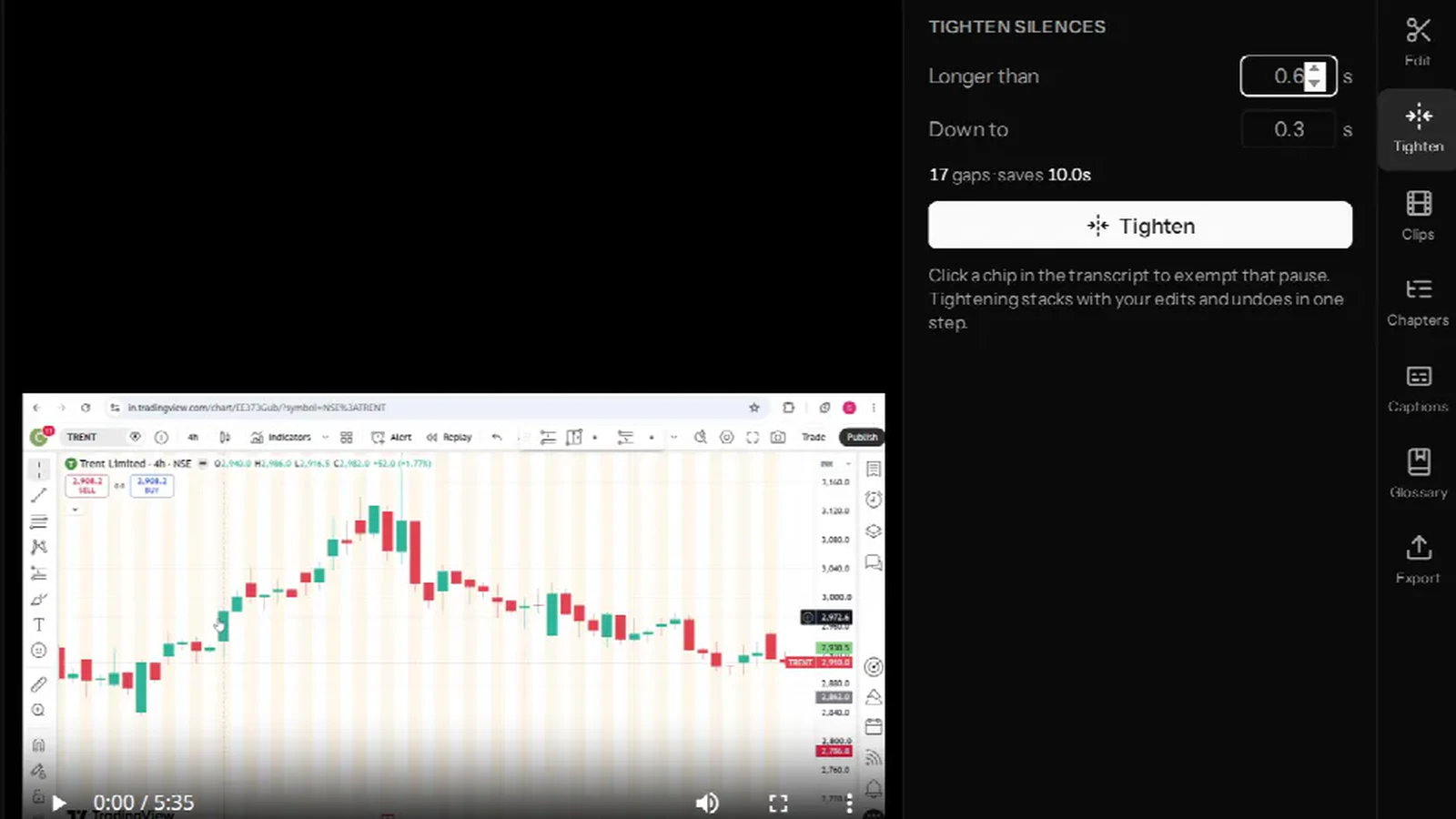
- Tighten silences last. Set a threshold, read how many gaps and how many seconds it will save, then apply. Do it after the structural cuts so you are only tightening pauses that survived.
Conversation needs more air than a scripted monologue, so tighten gently on an interview — and click the chip of any pause you left on purpose to exempt it. A beat before a punchline is content.
Every one of these lands as a single version, so one Cmd/Ctrl-Z reverses a whole pass. Full detail in removing filler words, silences and retakes.
Pass four: publish more than the episode
This is the part most shows skip, and it is where the transcript stops being an editing tool and starts being a distribution one.
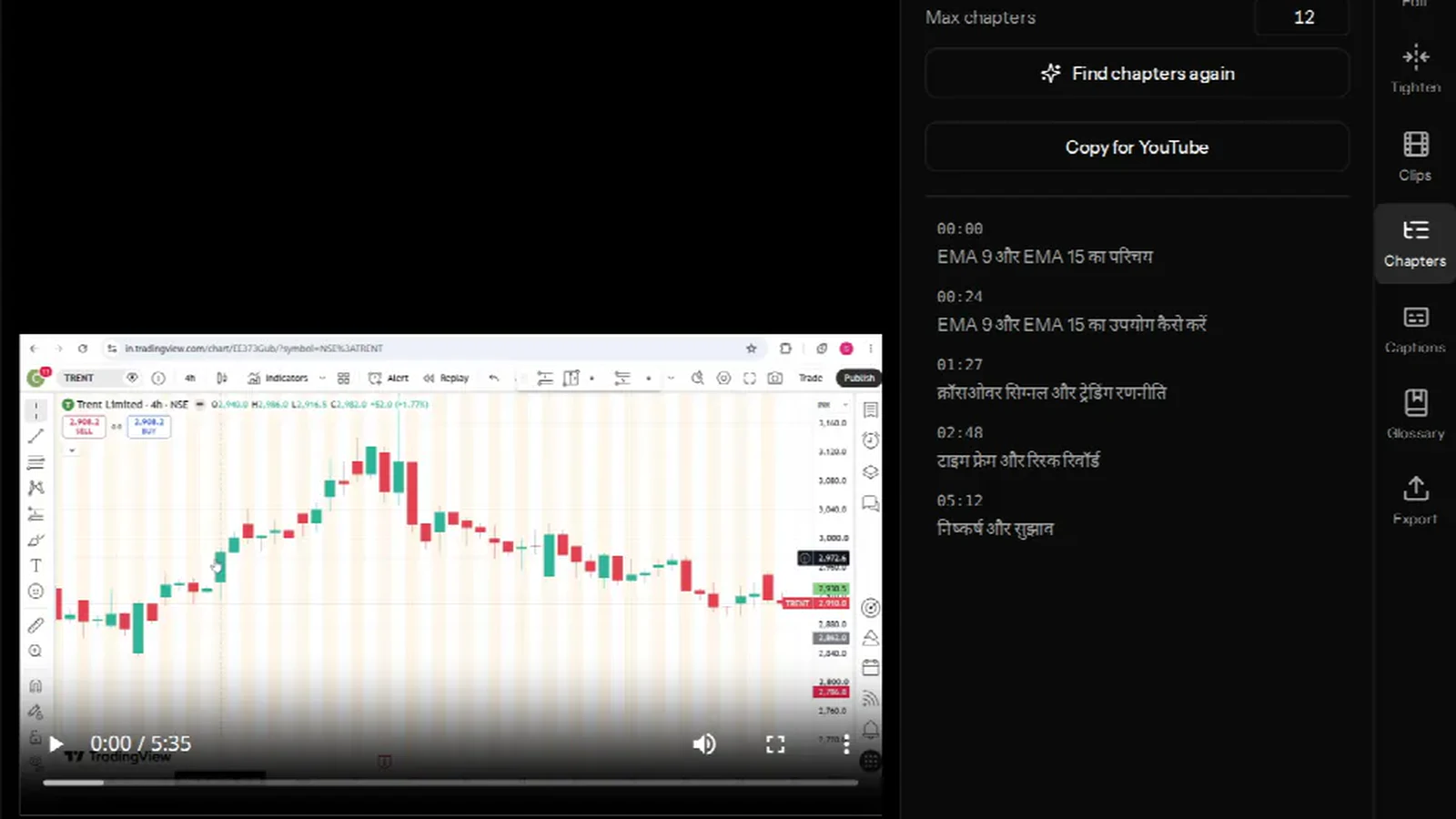
Chapters for the description. The Chapters tab reads the transcript and proposes a timestamped outline, with a Copy for YouTube button that emits the exact block YouTube parses — first mark forced to 0:00, hour form past an hour. The same list works as show notes in most podcast apps. See adding chapters and timestamps to YouTube videos, including the one caveat about timestamps and cuts.
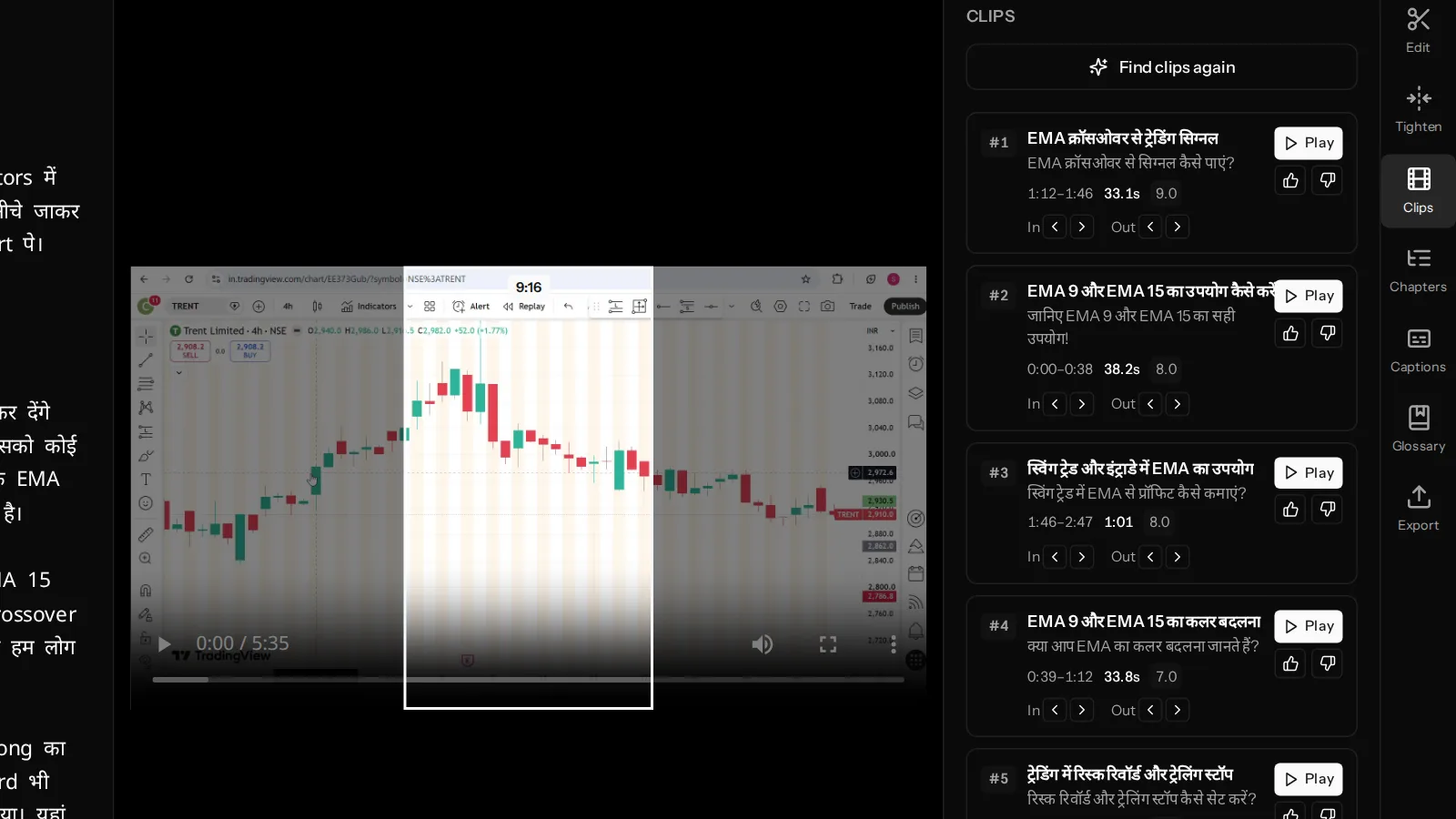
Clips for the feeds. The Clips tab proposes self-contained moments, ranked, with edges you can nudge. Approve three or four per episode and export them as 9:16 files. An interview is the best possible source for this — a good answer is already a self-contained thought. See turning a long video into vertical clips.
Captions for the mute scroll. Burn them into the vertical clips at minimum; most feed viewing happens on mute. Captions are timed from the edited transcript, so they follow every cut you made. See burned-in captions in Hindi and other Indian languages.
Exporting
The Export tab has two choices: resolution and whether captions are burned in.
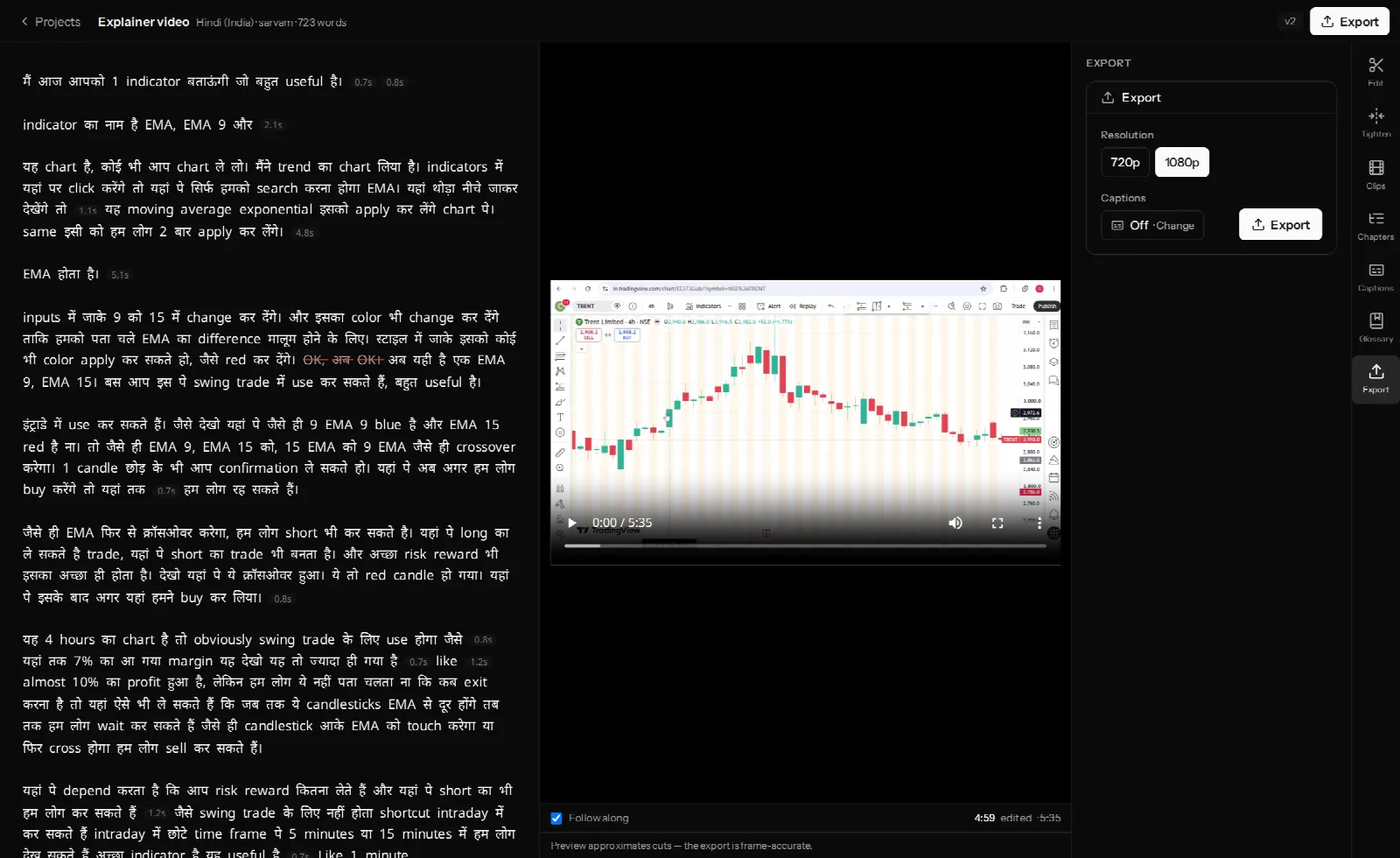
Pick the resolution your source actually is. Exports never upscale, so choosing 1080p for a 720p recording costs render time and file size and buys you nothing — it is the same picture in a bigger box. Free-plan exports are 720p and watermarked; paid plans export 1080p clean.
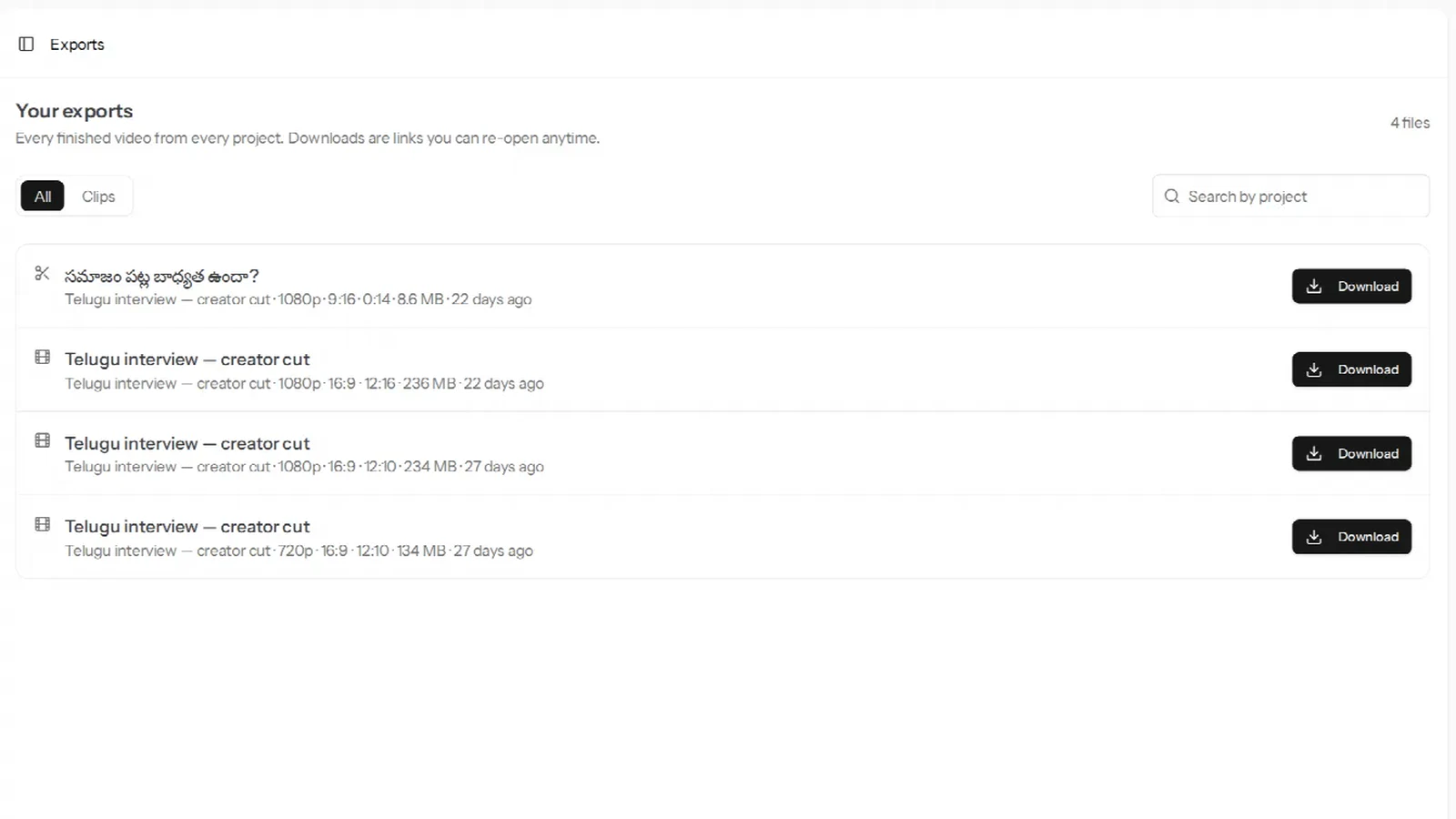
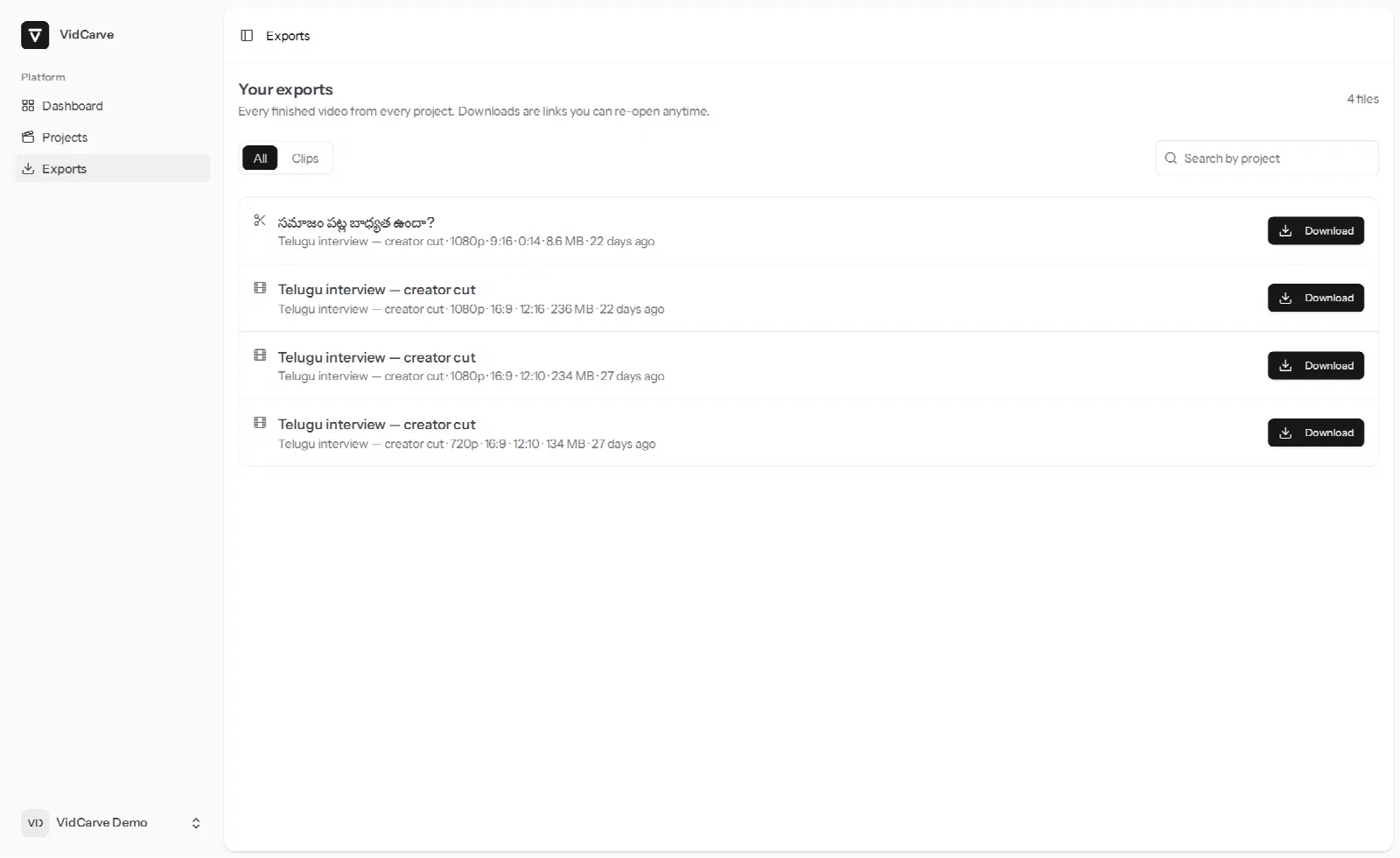
Finished files land in Exports, which spans every project you have.
A realistic time budget
| Step | Your time | Waiting |
|---|---|---|
| Upload + transcribe | 2 min | Runs on its own |
| Studio sound | 1 click | A few minutes, in the background |
| Read and cut | 30–45 min | — |
| Retakes, fillers, tighten | 10 min | Retakes: 4–6 min, in the background |
| Chapters + clips + captions | 15 min | A minute or two each |
| Export | 1 click | Depends on length |
Frequently asked questions
Can I edit an audio-only podcast this way?
The workflow is built around video, and the transcript, cutting, chapters and clip tools work the same either way. If your show is audio-first but you record video, this is the cheaper path — you get the episode and the vertical clips from one edit.
How long can an episode be?
Paid plans have no per-file length limit; the free plan caps a single upload at 30 minutes, which matches its monthly transcription grant.
What if a guest's name is transcribed wrong throughout?
Add it to the glossary and re-transcribe — free when the minutes were already paid for. Doing it before the upload is the cheaper habit. See accurate Hindi, Hinglish and regional-language transcripts.
Does this work for a Hindi or Telugu podcast?
Yes — that is the case VidCarve is built for, including code-switching between an Indian language and English mid-sentence. The transcript records both scripts as spoken.
Can two people edit the same episode?
Projects belong to one account. Every edit is a version with undo, so an editor working alone can always walk back a pass.