Hinglish Speech to Text: How to Transcribe Code-Mixed Hindi and English
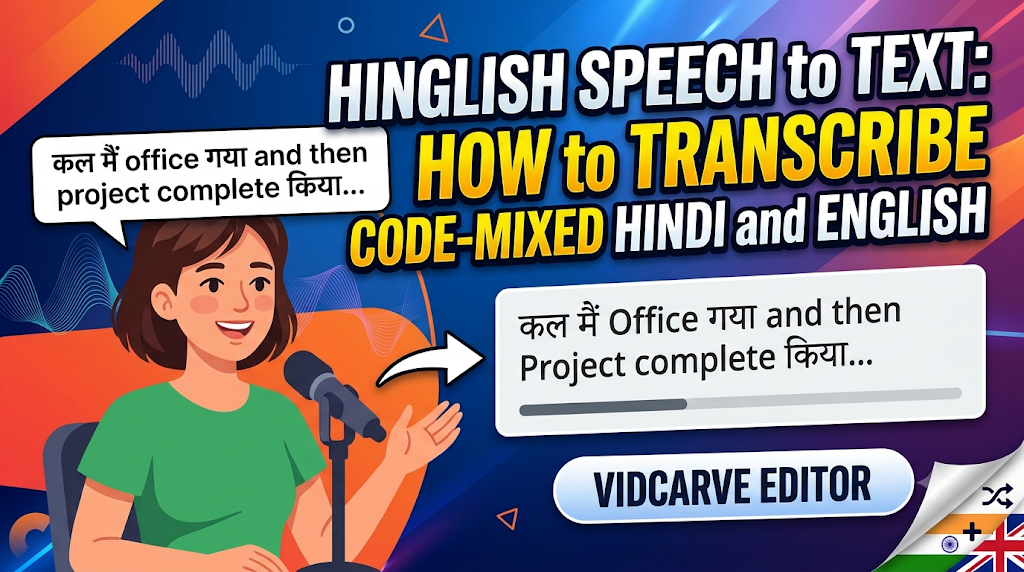
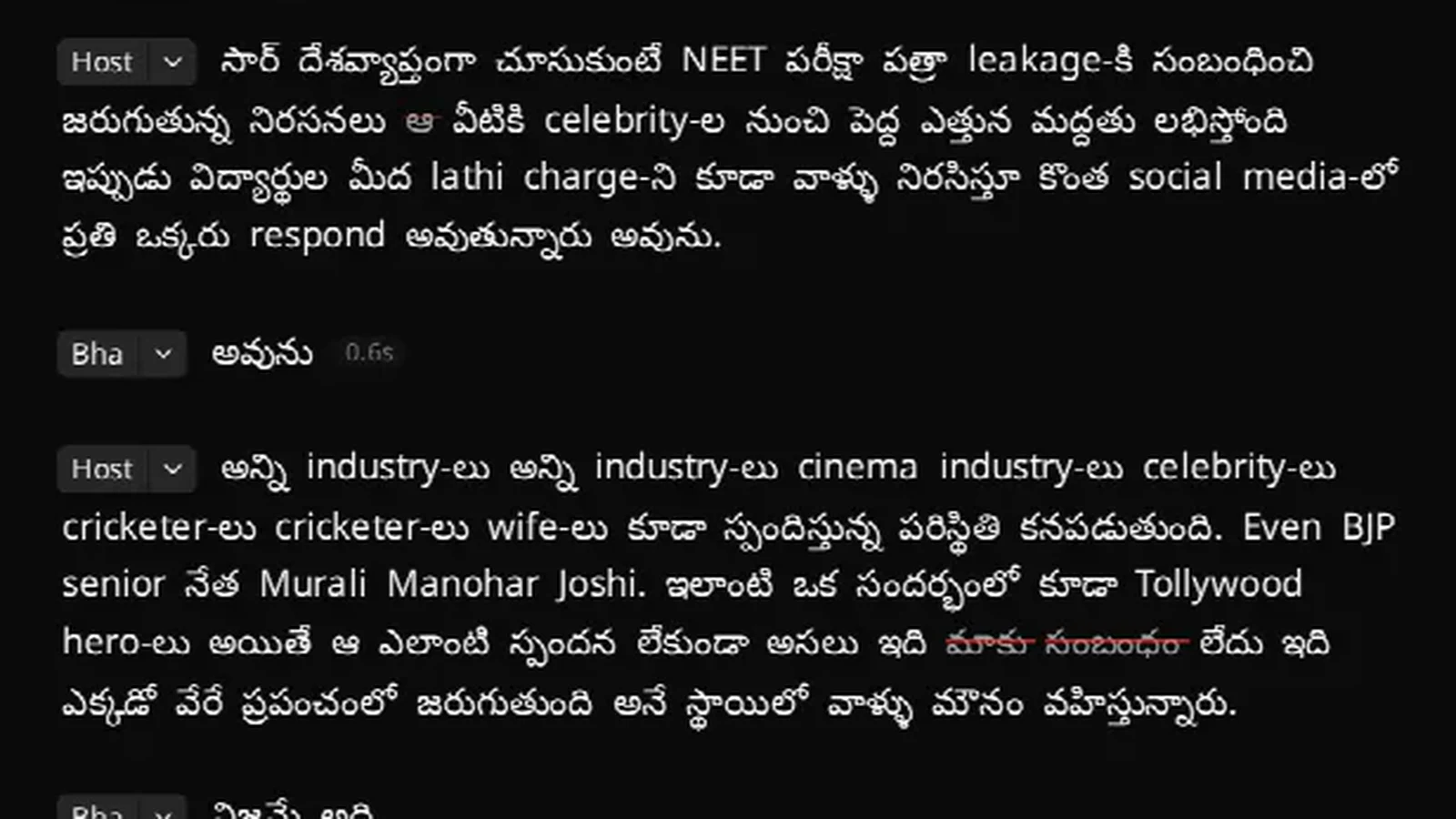
To turn Hinglish speech into text, use a transcriber that treats code-mixed Hindi and English as one language, not two. Most tools pick a single language per file: call it English and the Hindi comes back translated or garbled; call it Hindi and the English terms get mangled. VidCarve transcribes Hinglish as it is spoken — Hindi words in Devanagari, English words in Latin script, on the same line — and lets you edit the video by editing that text.
The same applies to Tanglish, Tenglish, Manglish, Kanglish, Banglish and the other English mixes of Indian languages: each is transcribed as its underlying Indian language with the English kept in English.
Why Hinglish breaks most speech-to-text tools
They assume one language per file
Descript, for example, states it plainly in its help centre: it "supports transcription in only one language per file", and "files with multiple spoken languages are not currently supported" (checked 12 November 2026). That is a reasonable design for a podcast in Spanish. It is the wrong design for a sentence like "आज हम Newton's third law को एक simple example से समझेंगे", which is how most Indian teachers, creators and podcasters actually talk.
Language detection counts English words and says "English"
A detector that looks at the proportion of English vocabulary will often label Hinglish as English. Once an English model is doing the work, Hindi speech tends to come back as a fluent English translation rather than a transcript. You lose the actual words — and in a transcript-based editor, you lose the ability to edit by them.
Romanised output loses the Hindi
Some tools write everything in Latin letters ("aaj hum newton's third law ko..."). It looks readable until you need captions: romanised Hindi has no standard spelling, so the same word appears three ways in one video, and viewers who read Devanagari find it harder, not easier.
How VidCarve handles it
- Detection resolves code-mix to the Indian language. VidCarve's language detector is deliberately instructed to classify Hinglish as Hindi (and Tanglish as Tamil, Tenglish as Telugu, and so on), so the right engine transcribes it.
- English stays English. The English words are written in Latin script exactly as spoken, so "Newton's third law" is still "Newton's third law" — searchable, and correctly spelled in captions. Mixed scripts on one line are the correct output, not a bug.
- A glossary for your own terms. Brand names, course names and jargon — in either script — can be added to an account or project glossary before transcription, so they come out spelled your way. See getting an accurate Hindi or Hinglish transcript.
- Captions that render both scripts. Burned-in captions shape Devanagari conjuncts and matras correctly beside Latin text. See adding burned-in captions.
How to transcribe a Hinglish video, step by step
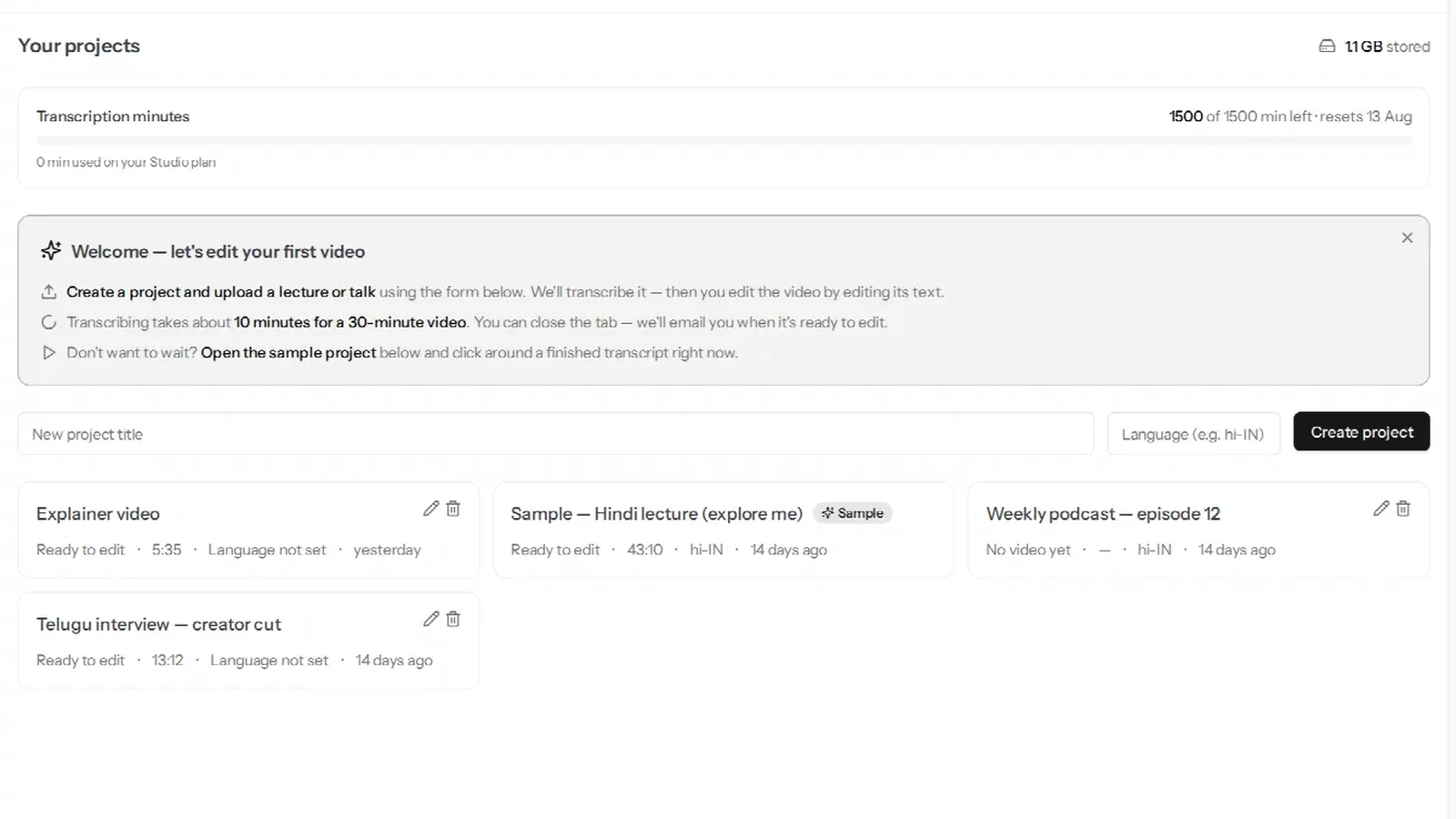
- Create a project and upload your video or audio (mp4, mov, mkv, webm, mp3, wav or m4a, up to 5 GB).
- Leave the language on auto-detect. You do not need to choose "Hindi" or "English" for a mixed recording. If you do set one, set the Indian language.
- Turn on Multiple speakers only if more than one person talks — an interview or a podcast. A solo lecture or vlog is better without it.
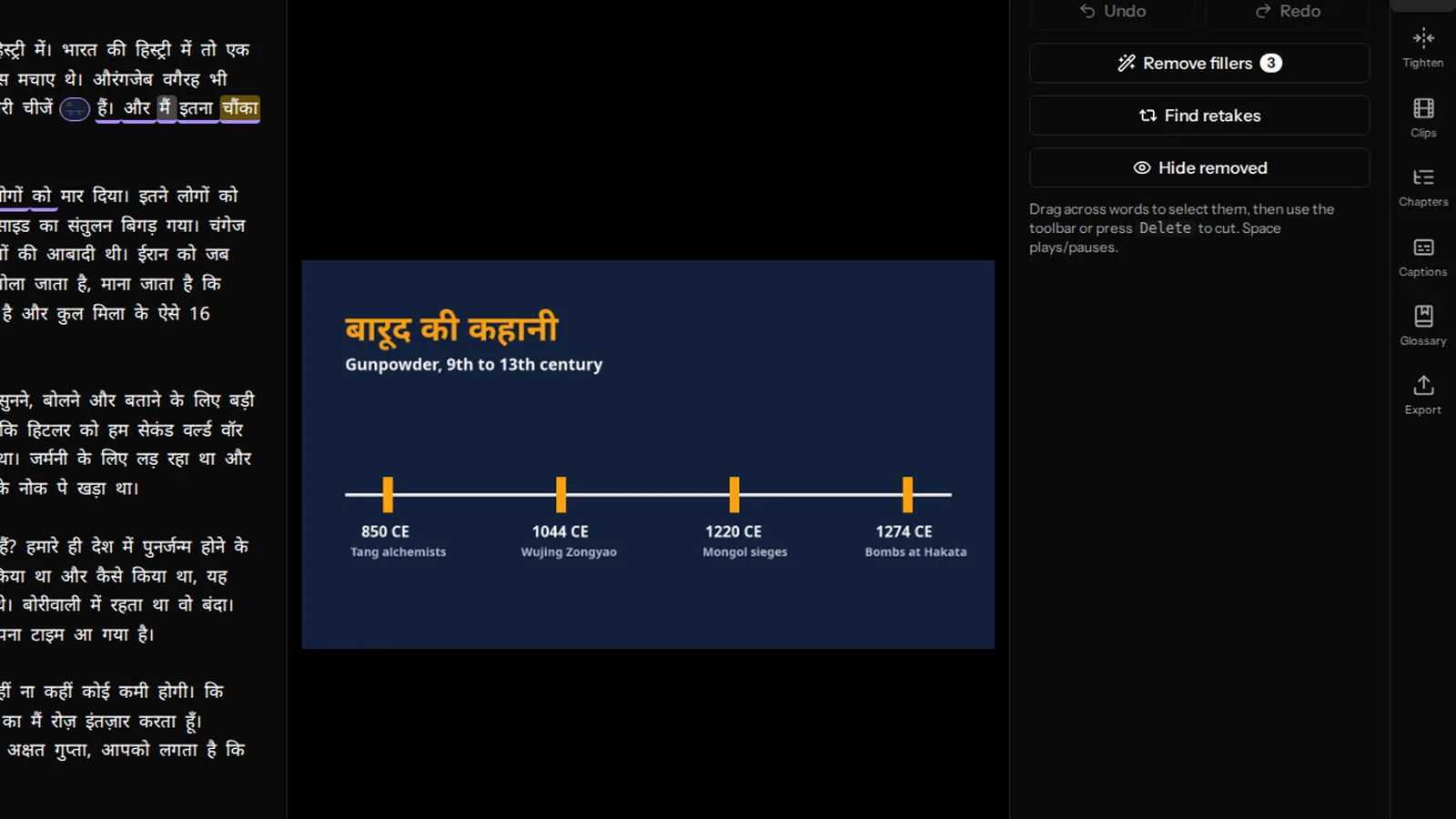
- Read and edit the transcript. Delete a sentence and it is cut from the video. Remove hesitations like "um", "hmm" and a drawn-out "अच्छा…" in one click — here is how.
- Export with captions, and pull out vertical clips for Shorts and Reels.
The free plan covers 30 minutes a month, with no card, which is enough to test a real recording rather than a sample.
What to expect, honestly
- Accuracy depends on audio. A phone mic close to the speaker beats a classroom camera at the back of the room. Background music under speech lowers accuracy in every tool.
- One transcript per file. The transcript follows what was said; VidCarve does not translate Hinglish into pure Hindi or pure English.
- No all-Roman option. Hindi words are written in Devanagari. If your audience reads only Roman script, this is the wrong output for you.
- No subtitle file export. Captions are burned into the exported video; there is no SRT download.