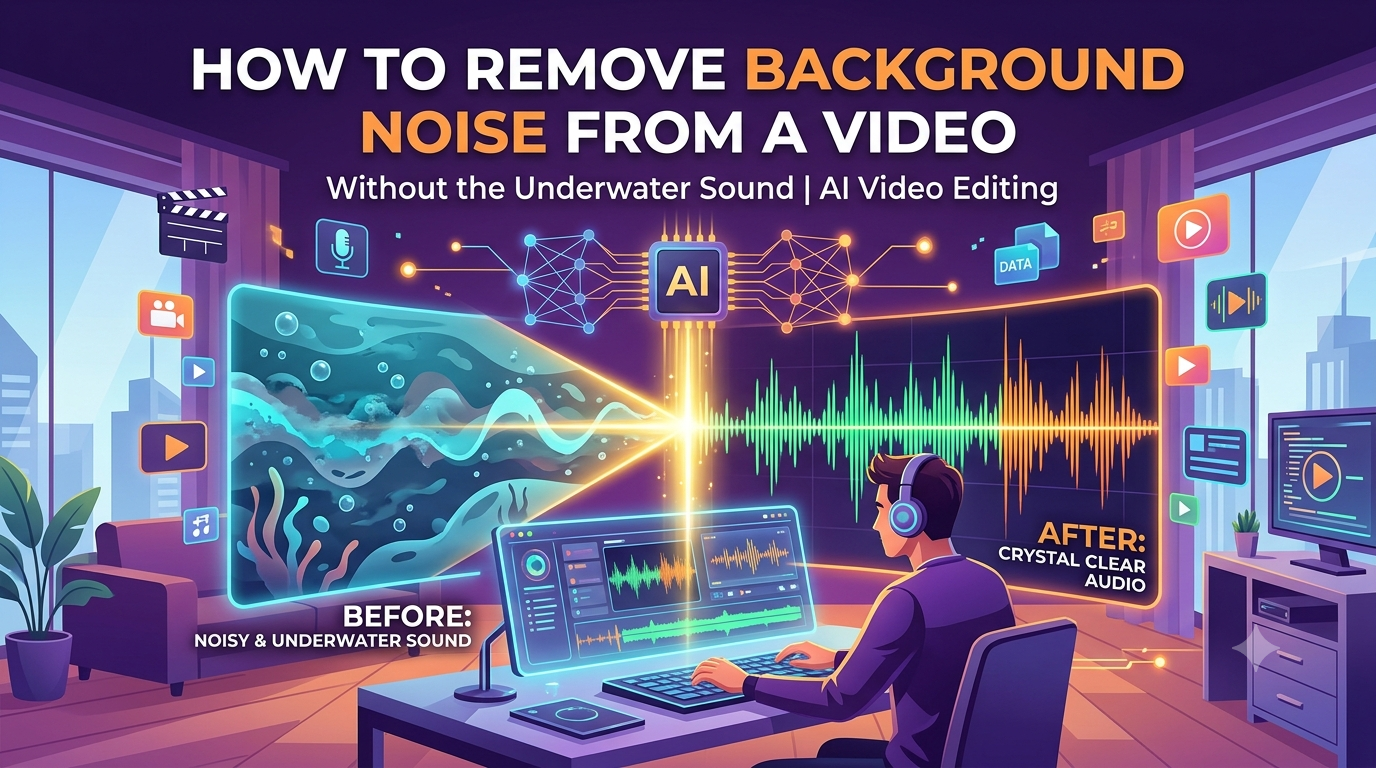
How to Remove Background Noise from a Video Without the Underwater Sound
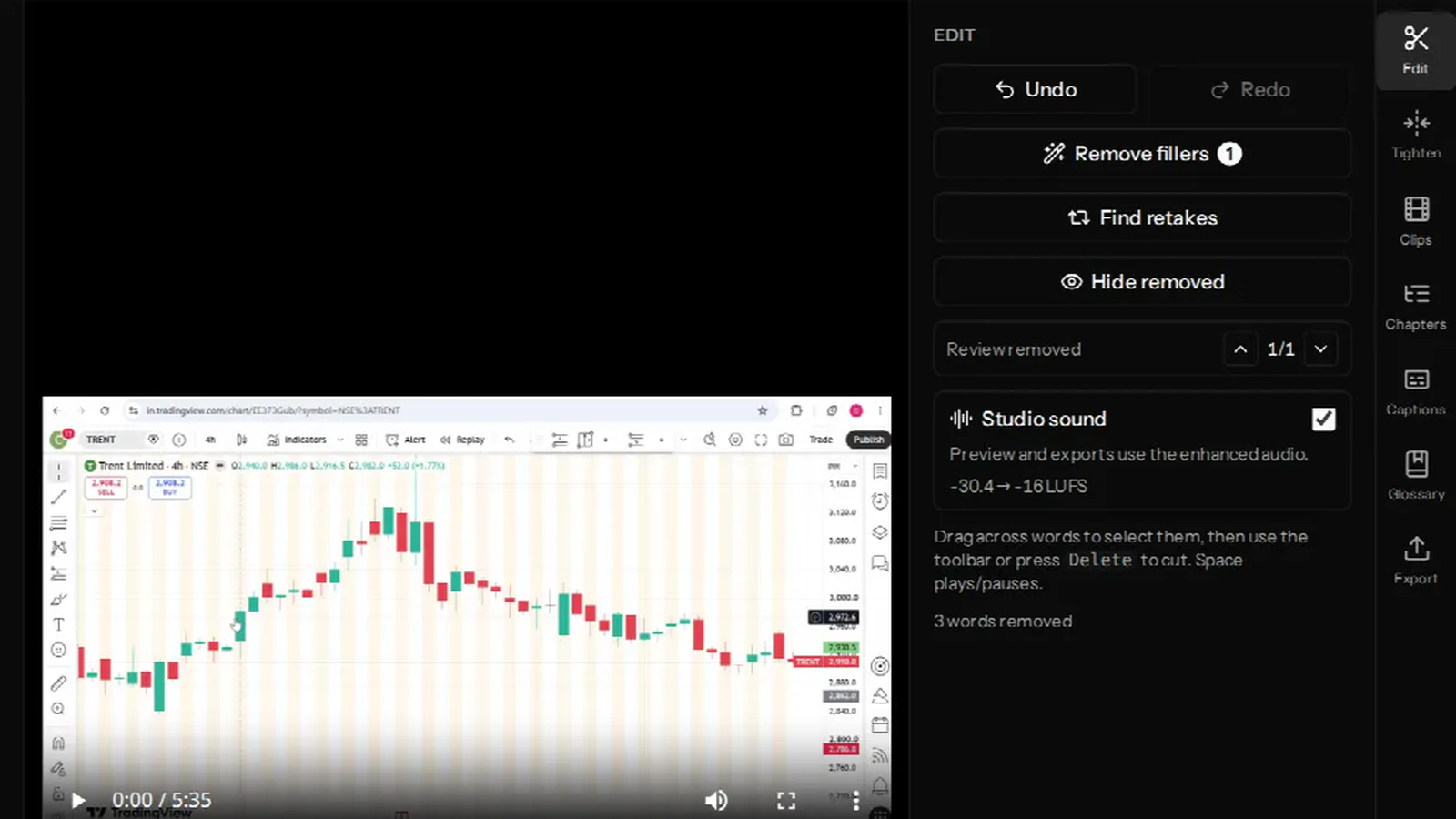
The fastest fix for a noisy recording is one checkbox: Studio sound, in the Edit tab. VidCarve cleans the whole recording once, tells you what it changed, and lets you A/B it against the original before you commit to anything.
This guide covers what that toggle actually does to your audio, why it deliberately stops short of a perfectly silent background, and what it cannot repair.
The short version
- Open the Edit tab and tick Studio sound.
- Wait a few minutes for the first run — you can keep editing meanwhile.
- Compare by toggling it off and on; the preview swaps between the original and the cleaned audio at the same playhead.
- Read the loudness line under the toggle — it tells you what your recording measured and what it was levelled to.
- Leave it on and your export uses the cleaned audio. Turn it off and the export uses the original.
Studio sound is available on paid plans. It is the most CPU-expensive thing VidCarve runs per minute of audio, which is why the plan is the whole gate.
How do you remove background noise from a video in VidCarve?
Upload the video and let it transcribe, then open the Edit tab. Studio sound sits below the editing controls with a one-line description of its current state.
The first run takes a few minutes on a normal-length video, because it processes the entire recording rather than a preview. The editor stays usable throughout — cut, tighten, find clips, whatever you like. When it lands, the preview switches over to the cleaned audio.
Every toggle after that is instant. Switching Studio sound off does not throw the cleaned track away, so switching it back on is immediate.
What does Studio sound actually do?
Two stages, in this order:
- Denoise. A dedicated speech-enhancement model separates your voice from the noise floor — fan hum, traffic, an air conditioner, room reflection — and pushes the noise down.
- Master. The cleaned voice then goes through a conventional broadcast chain: a high-pass filter at 80 Hz to remove rumble and handling noise below the voice, a de-esser for harsh s sounds, a small presence lift around 3.5 kHz, gentle compression to even out the loud and quiet moments, and finally loudness normalisation to −16 LUFS with a −1.5 dBTP ceiling.
That last number is the podcast and streaming convention for speech. It is also why the readout under the toggle is worth glancing at: if your recording measured −30 LUFS, it was very quiet, and most of what you will hear afterwards is not the denoising at all — it is finally being at a normal listening level.
Cleaned, not regenerated
This matters more for Indian languages than the marketing copy of most tools admits.
There are two ways to build an audio clean-up feature. One filters the recording you made. The other synthesises a new voice track from it — Descript, for instance, describes its Studio Sound as isolating your audio and then regenerating it. Regeneration can sound spectacular on a clean English voice, and it is exactly the approach that worries us on Hindi, Telugu, Tamil or Bengali speech: a model that rebuilds a voice has to decide what sound it is rebuilding, and models are trained overwhelmingly on English. Retroflex consonants, aspirated stops and the vowel length distinctions that separate one word from another are precisely the details a confident English-trained reconstruction smooths away.
VidCarve filters. Your voice at the end is the voice you recorded, with less noise around it and a level that travels.
Why doesn't it remove all the noise?
Because a recording with no background at all sounds wrong.
The denoiser has a ceiling on how far it may push the noise down, and it is set well short of the maximum on purpose. At full strength, the floor between words drops to digital silence, and the ear does not hear "quiet" — it hears the background pumping in and out around every sentence. That is the "underwater" or "phone call" complaint people have with aggressive noise removal, and it is the single most common way a clean-up makes a video worse.
Leaving a trace of the real room under the voice reads instead as a good microphone in a treated space, which is what you actually wanted.
Why does it process the whole video before your cuts?
A denoiser adapts to the noise floor it hears. Run it separately on each surviving segment of an edit and every cut converges on a slightly different floor, so the seams breathe audibly — and loudness normalisation compounds it, because each segment gets normalised to its own level and the joins jump.
So VidCarve enhances the full track once, before any cuts are applied. Two useful consequences:
- The result is sample-aligned with your source, so the transcript and every word timing still index it unchanged. Your existing edits survive.
- Cutting more afterwards costs nothing — you are cutting an already-clean track, not triggering another clean-up.
How do I compare before and after?
Untick and re-tick the toggle while the preview is playing. VidCarve swaps the audio source and restores your position, so you land back where you were rather than at the top of the video — which is the whole point, since the moment you want to judge is the one you were just listening to.
The toggle is also the export switch. Whatever state it is in when you export is what gets rendered, so if you preferred the original, leave it off.
Does cleaning the audio improve the transcript?
Not the transcript you are already looking at. Transcription runs on the original audio when the video is ingested, and Studio sound does not re-run it.
The relationship works the other way round: clean audio produces a better transcript in the first place, which is why anything you can fix at the source is worth more than anything you can fix afterwards. If your transcript came back poor because of the recording, see getting accurate Hindi, Hinglish and regional-language transcripts, which covers re-transcribing.
What it cannot fix
Studio sound is a repair tool with real limits. Set expectations here rather than after an export:
- Clipping. Audio recorded so loud that it distorted has lost information. Nothing recovers it.
- Another person talking. Speech in the background is speech; the model is not deciding which human matters.
- A song playing in the room. Music is structured sound, not a steady noise floor, and it will not cleanly separate.
- A microphone across the room. Distance mostly buys you reverberation, and reverberation is your own voice arriving late. Reducing it is the hardest problem in this list.
The five minutes that beat any clean-up
- Get the microphone close. A phone at arm's length beats a laptop across a table.
- Record in the smallest soft-furnished room you have, away from windows.
- Switch off ceiling fans and air conditioning for the take.
- Record a few seconds of silence at the start — useful for you, and for any tool you use later.
- Listen back on headphones for thirty seconds before you record the whole thing.
Frequently asked questions
Is Studio sound available on the free plan?
No. It is a paid-plan feature. Everything else in this guide — cutting from the transcript, tightening silences, captions — works on the free plan.
Will it change how my voice sounds?
It filters rather than re-synthesises, so the timbre is yours. The audible changes are less background, less rumble, softer sibilance, a slight presence lift and a consistent level.
Can I use it on a video I have already edited?
Yes. It enhances the underlying recording, and your cuts are a separate, non-destructive layer on top, so nothing you have edited is lost.
Does it work on Hindi, Telugu, Tamil and other Indian languages?
Yes, and it is language-independent by construction — it operates on the audio, not on words. That is also why it does not need a per-language model the way transcription and filler-word removal do.
How long does it take?
A few minutes for a normal video, once. After that, toggling is instant because the enhanced track is kept.
Next steps
- Remove filler words, silences and retakes — the pace fixes that pair with the sound fix.
- Edit a video podcast from start to finish — where Studio sound sits in a full episode workflow.
- Where AI actually helps a video editor — and where it is still worth doing the work yourself.