How to Turn a Long Video into Vertical Clips for Reels and Shorts
One long video is several short ones you have not cut yet. VidCarve reads your transcript, proposes self-contained moments worth clipping, and exports the ones you approve as 9:16 vertical files ready for Instagram Reels, YouTube Shorts and WhatsApp status.
The part that usually goes wrong with vertical repurposing is framing: a 16:9 interview cropped down the middle puts your speaker's ear in the centre of the frame. VidCarve gives you a crop position you can set — and, when the speaker moves, keyframe over time.
The short version
- Open the Clips tab and run Find clips.
- Review the proposals; mark the good ones Keep with the thumbs-up.
- Nudge each clip's in and out points a word at a time if needed.
- Frame the 9:16 crop under the preview; add keyframes if the speaker moves.
- Pick a resolution and a vertical caption style, select your kept clips, and export.
How does VidCarve decide what makes a good clip?
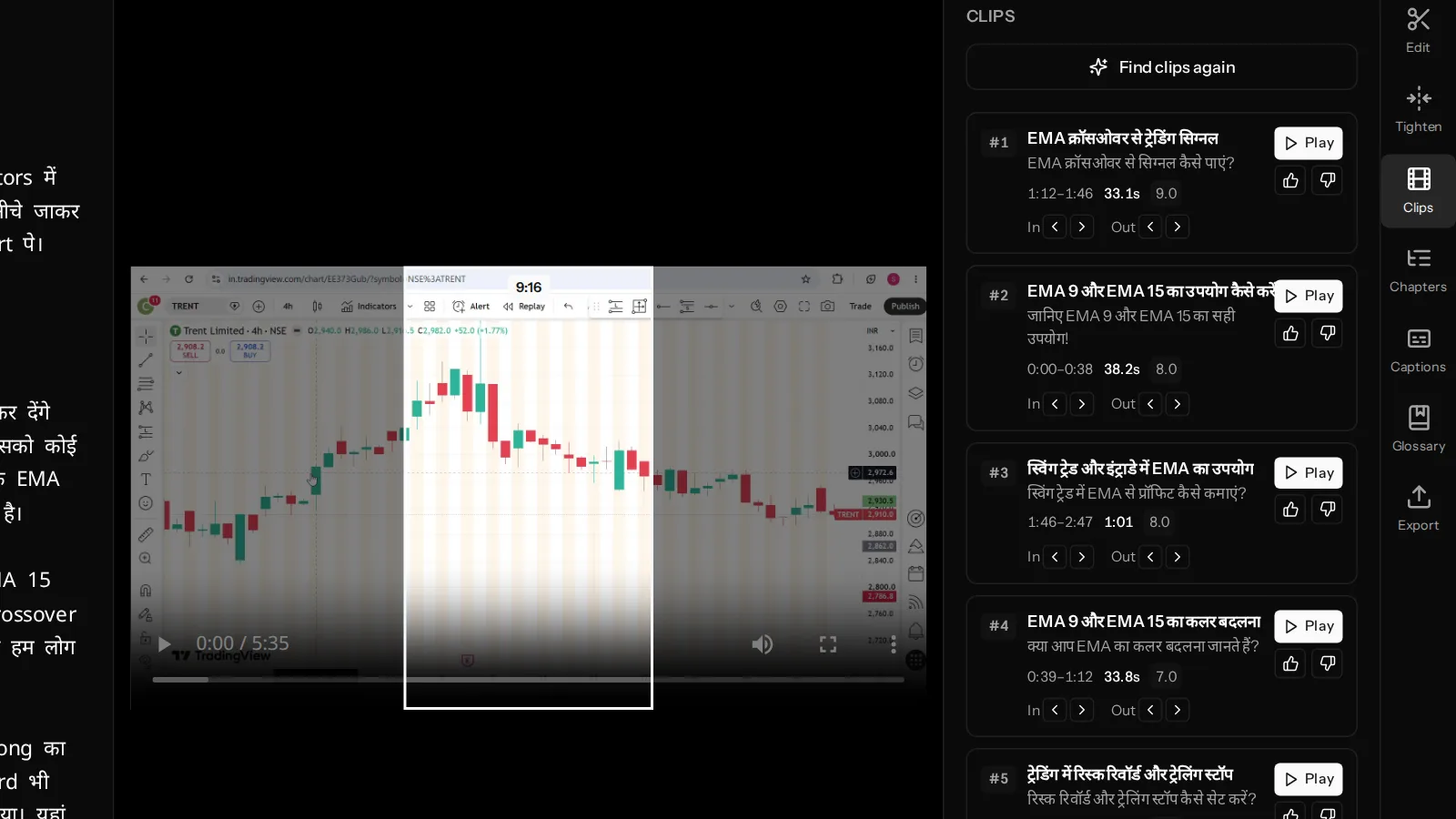
It reads the transcript, not the waveform. It is looking for a passage that stands on its own — one that opens on a question, a claim or a story, and closes having finished the thought. A clip that needs the previous five minutes to make sense is not a clip.
Each proposal comes back with a title, a one-line hook, its time range, its duration and a score. The score is the finder's confidence that the moment works standing alone.
Two details matter for how usable the results are:
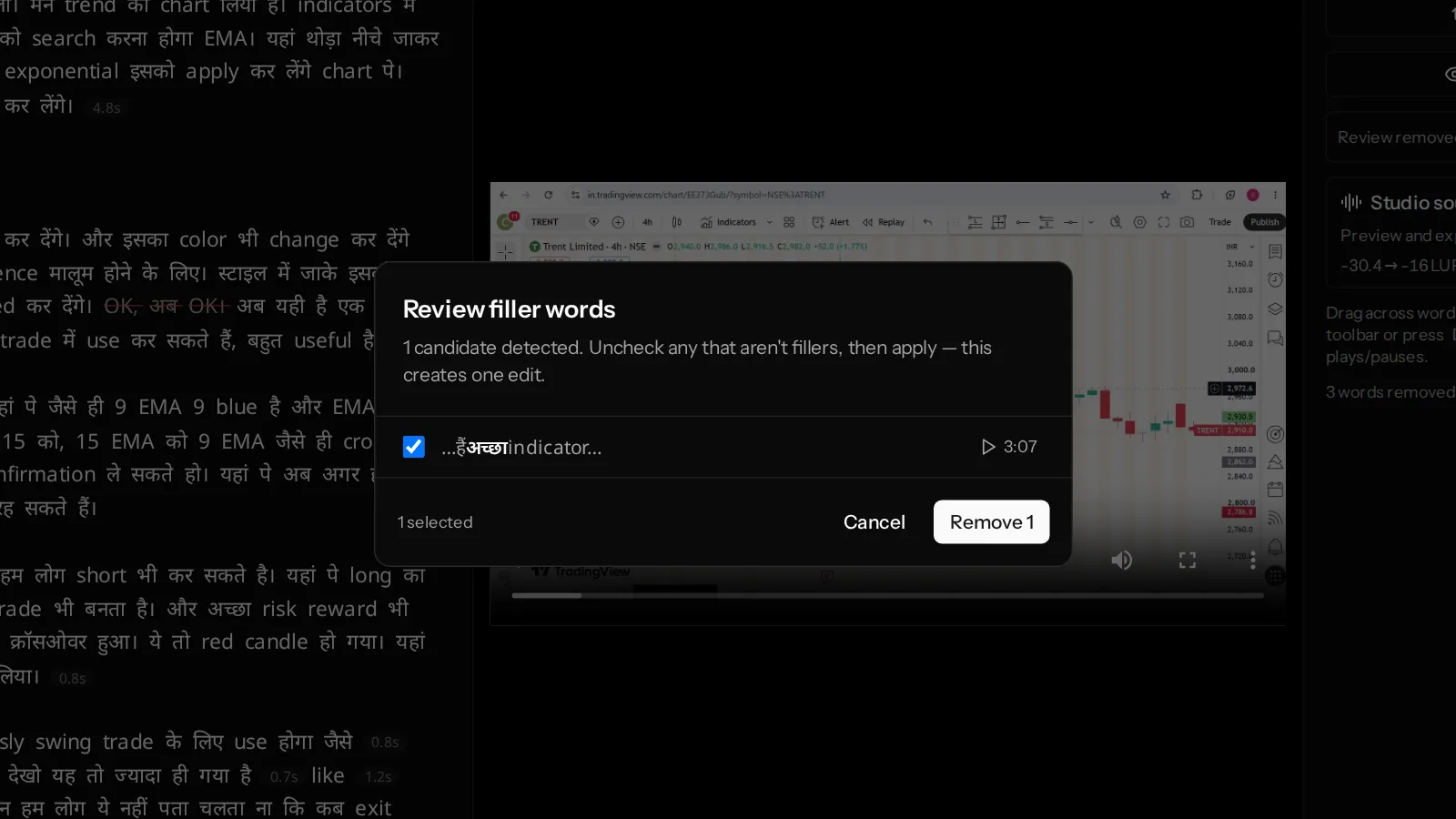
- Boundaries snap to word edges. A clip never opens or closes mid-word, and the finder prefers the natural pause between sentences over an arbitrary timestamp.
- Clips inherit your edits. A clip is your current edit, clamped to that time window — so filler words you removed and silences you tightened are already gone from every clip.
Step 1: Review the proposals
Nothing exports on its own. Every clip starts as a candidate and you sort them with two buttons:
- Thumbs up (Keep) — marks it green and makes it selectable for export.
- Thumbs down (Discard) — dims it out of the way without deleting it.
Use Play to preview a clip in place before you judge it. You can also rename a clip — the title travels with the exported file, which matters when you are looking at eight downloads in a folder later.
If a clip's span was entirely removed by a transcript edit, VidCarve marks it rather than exporting an empty file, and you can nudge its bounds back into content you kept.
Step 2: Nudge the in and out points
The In and Out arrows on each clip move that edge one word earlier or later. This is the most valuable thirty seconds you will spend on a clip.
Two things to listen for. First, a clip that starts one word too late loses the setup of its own hook. Second, a clip that ends a word too early clips the final consonant and sounds like a dropped call. Nudging outward by a word usually fixes both.
A nudge is a manual override, not a re-run — VidCarve does not re-snap your edge to somewhere it thinks is better afterwards.
Step 3: Frame the vertical crop
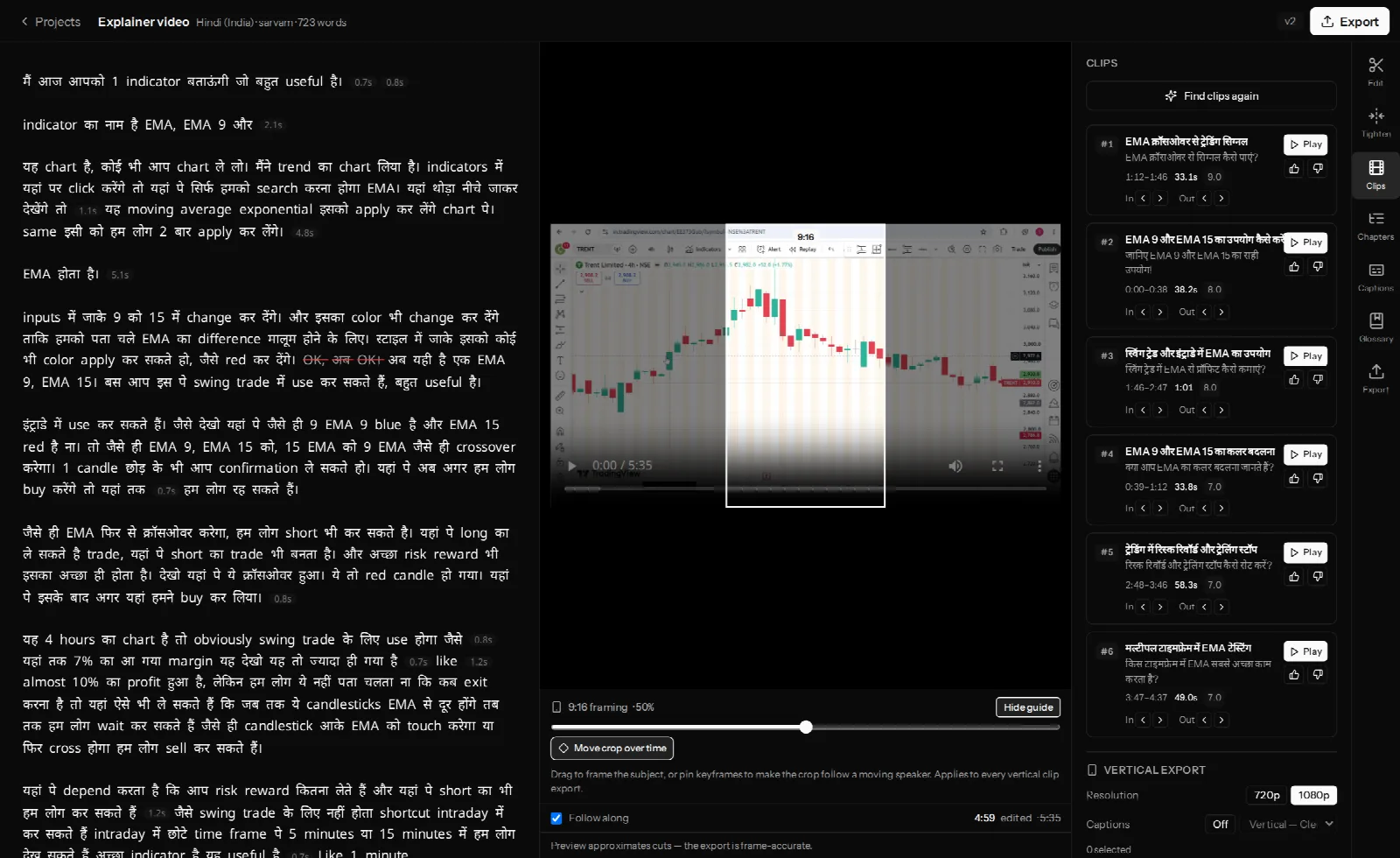
Under the preview, the 9:16 framing control draws the vertical window over the frame, dimming everything that will be cut away. Drag the slider to move it.
For a static talking head, one position for the whole video is enough. Put the speaker's eyes in the upper third of the vertical window and you are done.
For a speaker who moves, use keyframes. Press Move crop over time, scrub to a moment, and drag the slider — that pins a keyframe there, and the crop pans smoothly between keyframes. Two or three are usually enough for a whole episode: one where the host settles, one where they lean into the story, one where they sit back.
The keyframe strip under the button shows each one as a diamond on the timeline. Click a diamond to seek to it, shift-click to delete it, or clear them all and go back to a fixed crop.
This framing applies to every vertical export from the project, so set it once rather than per clip. If your source is already vertical, the control tells you so and keeps the full width.
Step 4: Export the clips
The Vertical export section at the bottom of the Clips panel takes three decisions:
- Resolution — 720p or 1080p. Exports never upscale, so a 720p source stays 720p whatever you pick here.
- Captions — off, or one of the vertical caption presets. These are sized for a 9:16 canvas rather than shrunk from the horizontal styles. See adding burned-in captions.
- Which clips — tick the kept clips you want. The counter tells you how many are selected.
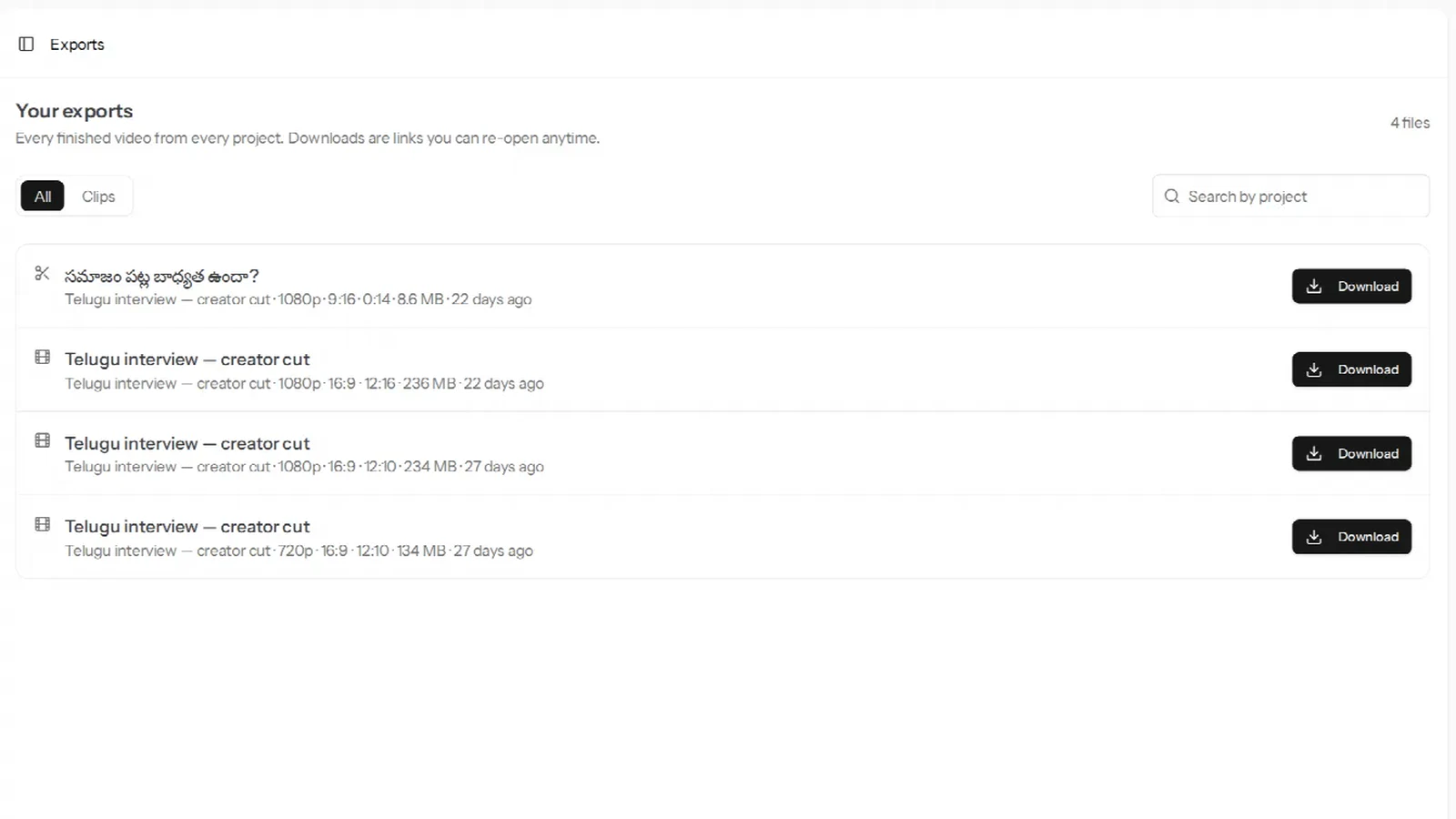
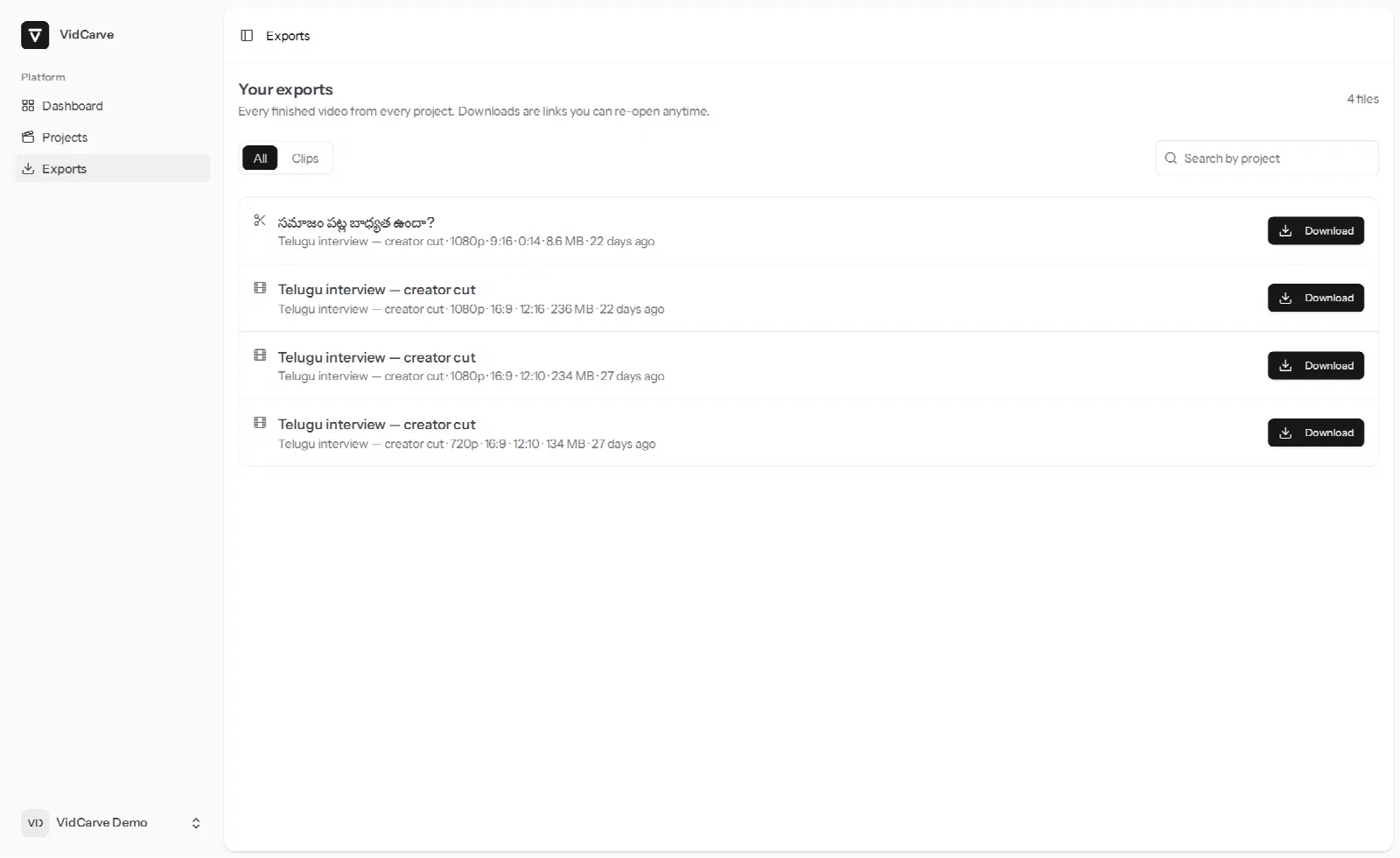
Export runs them as a batch in the background. Finished clips arrive on the Exports page alongside your full-length videos, labelled with their aspect ratio so 9:16 files are easy to pick out.
Bonus: chapters for the long version
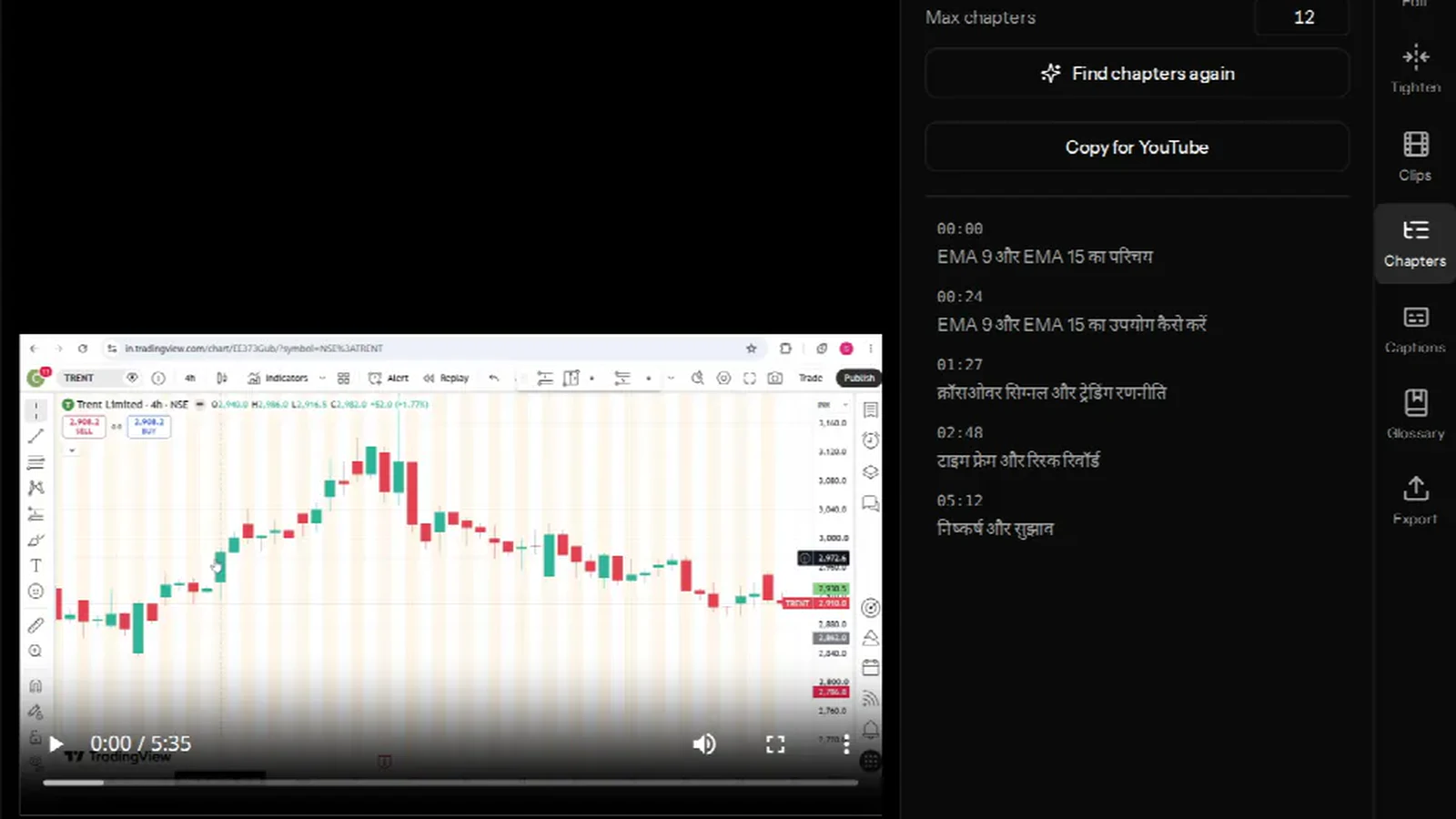
While you are repurposing, the Chapters tab builds a timestamped outline of the same video from the same transcript. Copy for YouTube gives you the description block in the exact format YouTube parses into chapter markers.
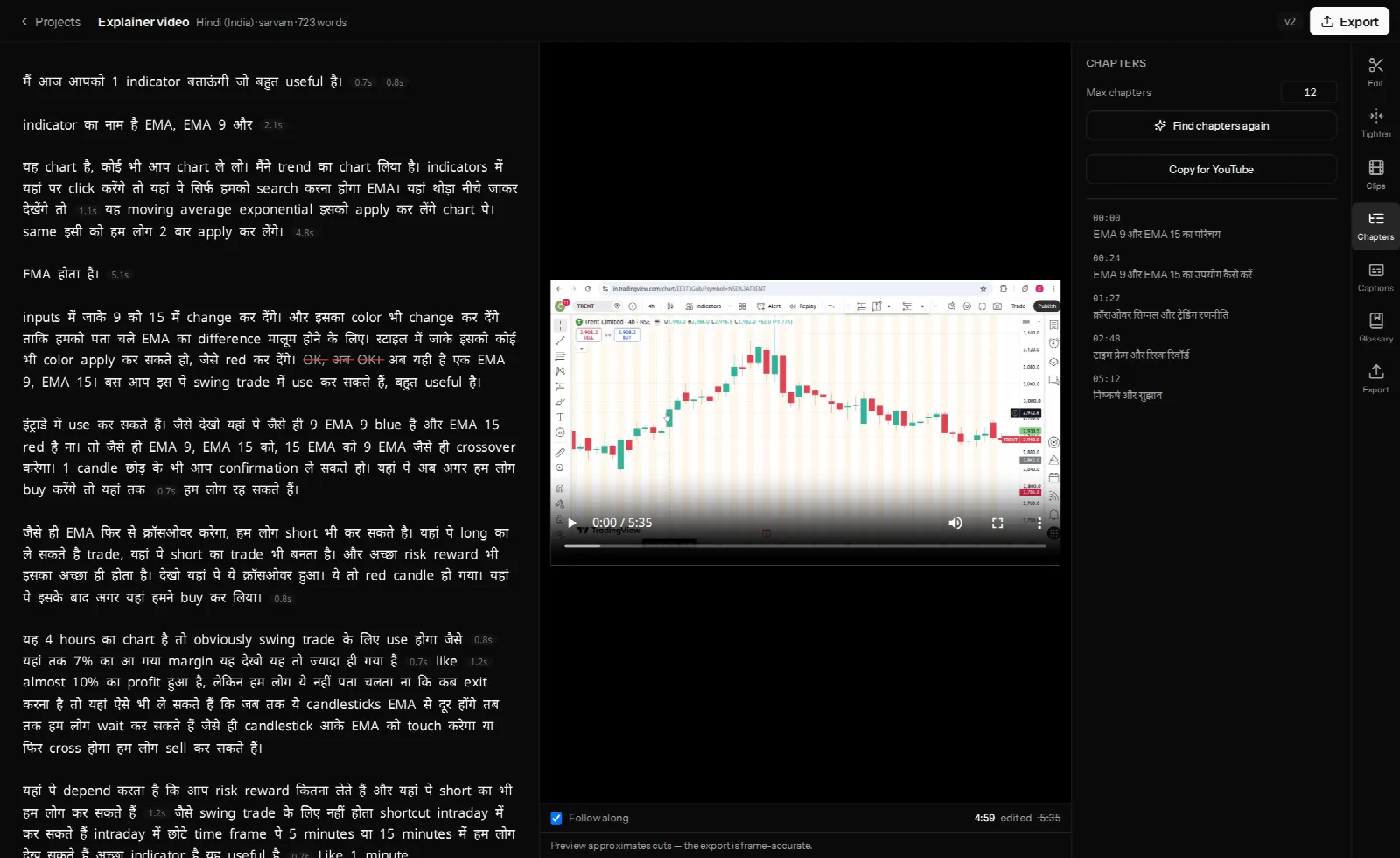
The clip and the chapter say different things about the same moment: a chapter title tells a viewer already watching where they are, a clip hook has to stop a stranger scrolling. It is worth rewriting one into the other rather than reusing it.
A workflow that holds up weekly
- Edit the full episode first. Cuts, fillers and tightened silences all flow into the clips, so doing this first means you are not repeating the work per clip. See removing filler words, silences and retakes.
- Run Find clips and keep three or four, not all eight. Posting your weakest proposal costs more than not posting.
- Nudge every kept clip — a word out at each end.
- Set the crop once, with keyframes if the speaker moves.
- Export the batch with a vertical caption preset, then write the captions and hashtags from each clip's hook line.
Frequently asked questions
How many clips will VidCarve find?
Up to eight per run, ranked by score. You can re-run the finder if you want a fresh set.
Can I change a clip's start and end?
Yes, a word at a time with the In and Out arrows. The clip stays exactly where you put it.
Do my edits carry into clips?
Yes. A clip is your current edit clamped to the clip's window, so removed words and tightened silences are already gone.
What if my speaker moves around the frame?
Use Move crop over time to pin keyframes. The crop pans between them, so the speaker stays in the vertical window.
Can clips have different captions from the main video?
Yes. Clips carry their own caption style, and the vertical presets are built for the 9:16 canvas.
Does exporting at 1080p improve a 720p recording?
No. Exports never upscale — you would pay for a much larger file and gain nothing.